Made with this app


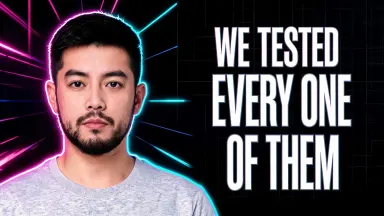


AI YouTube Thumbnail takes a single photo of you, cuts out your figure, sets it large on one side of a 16:9 frame, and fills the other half with a styled background from its built-in library, then locks your headline in heavy capital letters big enough to read on a phone screen. It is built for creators, educators and marketers who need a polished, click-worthy thumbnail without opening a design tool or writing a single prompt. Upload a JPG, PNG, WebP or GIF, pick a background style, type a short headline and the finished image is ready.
How to use this app
- 1
Upload your file. There is no prompt you have to write.
- 2
Pick a look from the visual library, add a note of your own if you want one, then press Generate.
- 3
Watch your result appear in the gallery within moments.
- 4
Download, share, or generate again with a new idea.
What you can make
Finance and investing content
A personal finance creator uploads a clean headshot, chooses "Finance", and types a headline like BEAT THE MARKET. The deep green background with its faint chart graphic signals authority instantly, and the large cut-out figure gives the thumbnail the professional weight that finance audiences expect.
Gaming and tech channels
A gaming reviewer uploads a reaction shot, picks "Neon gaming", and the dark background rim-lights their figure in magenta and cyan. The result matches the visual language of the genre without any manual compositing, making it immediately recognisable in a densely packed subscription feed.
Tutorial and how-to videos
An educator filming a whiteboard tutorial uploads a forward-facing photo and selects "Marker notes". The hand-drawn arrows and notebook-style background reinforce the teaching context, while the large headline tells viewers exactly what skill they will pick up before they click.
Drama and opinion videos
A commentary creator with an expressive photo picks "Comic burst" for the radial speed lines and thick outline effect. The high-contrast style amplifies the energy of a reaction or hot-take video, and the bold headline confirms the topic in a fraction of a second.
Professional or interview-style content
A podcast host or business creator uploads a neutral headshot and chooses "Clean studio". The pale gradient background and soft drop shadow give the thumbnail a broadcast quality that suits interview, leadership or career-advice content without looking overdone.
Shots to try
Tips for better results
Keep headlines short and punchy
The app sets headlines in very large type, and short phrases of two to five words render at the biggest size and clearest weight. Aim for under 30 characters to give the letters maximum impact. A short phrase like CHANGED MY LIFE reads from across a room; a full sentence shrinks the type and loses the effect.
Match style to content mood
Each background tile signals a genre before a viewer reads a word. "Cinematic" tells a serious story; "Comic burst" promises energy and surprise; "Finance" signals restraint and authority. Choose the tile that matches what your video actually delivers, and the thumbnail and the content will feel consistent.
Use photos with clear subject separation
The app cuts your figure out cleanly and places it on the new background, so a photo where you are clearly the subject, with reasonable contrast between you and whatever was behind you, gives the sharpest result. Busy or very dark clothing that blends into a dark original background can soften the cut-out edge.
Type headlines without accented characters
Plain English headlines are set exactly as typed and come back reliably. If your headline includes accented letters, the app warns you before you proceed: the dependable route for an accented headline is to type it without its diacritics, so the letters are rendered faithfully in the large display type. The app warns about any alphabet it has not been measured drawing exactly, but Chinese, Thai, Russian and Ukrainian were measured and come back exactly as typed, so a headline in one of those is never warned about.
When to choose this app
AI YouTube Thumbnail is the right choice when you need a finished, channel-ready 16:9 image with your face on it and a readable headline, produced from a single photo upload with no manual layout work. AI Camera Angle Changer reshoots a photo from a new point of view but does not add headline text or styled backgrounds built for a feed. AI Sticker Maker turns a photo into a die-cut sticker in a chosen material. Neither is designed around the specific composition, text placement and background genre that make a thumbnail scannable at thumbnail scale.
Frequently asked questions
What kind of photo works best for a clean result?
A photo where you are the clear main subject, facing forward or at a slight angle, with your face unobstructed, gives the best cut-out and the most readable result. The original background is always replaced entirely, so its content does not matter, but good lighting on your face ensures the large cut-out figure looks sharp at thumbnail scale.
Can I use a group photo or does it need to be just one person?
The app is designed around a single prominent figure cut out and placed large on one side of the frame. A photo with multiple people of similar size can produce inconsistent results because the composition logic is built for one subject. A solo photo, or one where you are clearly the dominant figure, gives the most reliable outcome.
Will the background style change how my face looks?
The background choice affects what appears behind you and the rim lighting or glow that wraps your figure, for example the neon glow in "Neon gaming" or the drop shadow in "Clean studio". Your face is kept as the same recognisable person from your original photo and is not relit or altered in skin tone or features.
What file formats can I upload?
You can drag in or pick a JPG, PNG, WebP or GIF from your device. The app accepts any of those four formats, and you do not need to resize or crop before uploading.
Can I add a second line of text or a channel name to the thumbnail?
The app sets one headline, spelled exactly as you type it, and nothing else appears in the image. It does not add a channel name, a logo, a second line of smaller text, a subscribe button or any other caption. The single large headline is the only text element in the finished thumbnail.
Can I choose where in the frame my headline appears?
The layout places your figure on one side and the headline in the open half opposite it. That composition is fixed because it is what makes the thumbnail readable at small sizes. You cannot request a specific corner or specify that the text appears above or below your figure.
How much does it cost?
Each generation costs 1 credit. New accounts get free credits to try it out.
Do I need any editing skills?
No. Upload your photo, pick the look you want from the library, and the app writes the full instruction for you behind the scenes. There is nothing to install and nothing to configure. A small optional box lets you add one line in your own words, but the app works without it.
Can I use the results commercially?
Yes. Content you generate is yours to use, subject to our content licenses.
How long does a generation take?
Most generations finish in under a minute, and you can watch progress live in the gallery.