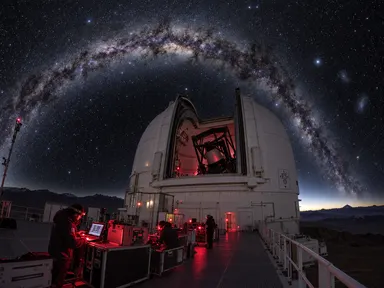
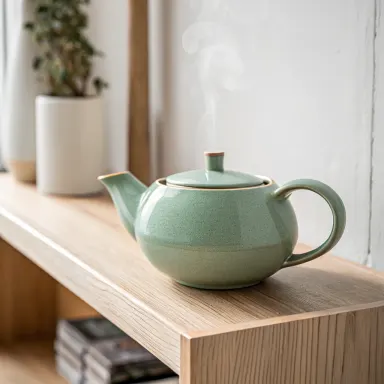
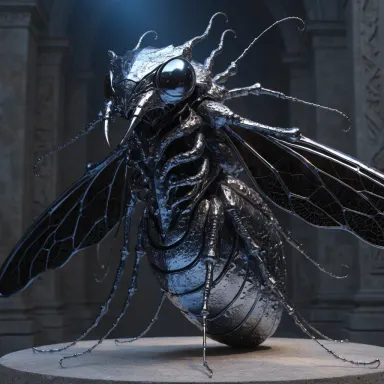
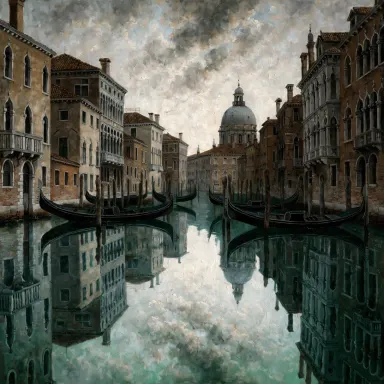
Made with this app



GPT Image 2.5 Flare is OpenAI's fast configuration of GPT Image 2.5, built for creators who need high-volume output without sacrificing quality. It renders natural lighting, rich texture, and complex layouts, and it keeps a subject recognizable across different settings and compositions. Transparent background support makes it practical for product imagery, social content, and rapid visual prototyping. If you generate frequently and need results that hold up at professional quality, this is the app for that workflow.
How to use this app
- 1
Describe what you want to create, or upload your source file.
- 2
Pick your options, then press Generate.
- 3
Watch your result appear in the gallery within moments.
- 4
Download, share, or generate again with a new idea.
What you can make
Product Photography at Scale
Drop a product description into the prompt, switch the Background control to Transparent, and get clean cut-out images ready for e-commerce listings, ads, or pitch decks. Because GPT Image 2.5 Flare preserves subject consistency across generations, you can iterate on lighting and setting without the product drifting between shots.
Social Content Rapid Prototyping
Test a dozen visual directions before committing to a shoot or a designer's time. The Flare configuration is optimized for high-volume work, so you can move through concept variations quickly. Pick the Wide or Landscape size for banner formats, or Portrait for stories and vertical feeds.
Character or Subject Continuity
When you need the same mascot, spokesperson, or product hero to appear across multiple scenes, GPT Image 2.5 Flare keeps that subject recognizable from one image to the next. Describe the same character in different environments and get a coherent visual series rather than a set of images that look like different characters.
Texture-Rich Editorial Imagery
Food photography, fabric close-ups, architectural detail, natural materials: GPT Image 2.5 Flare's natural lighting and texture rendering make it well suited to editorial contexts where photographic quality matters. Use the 1024x1024 or Landscape size depending on how the image will be placed.
Iterative Design Editing
Describe only the element you want to change and the rest of the composition stays intact. This makes GPT Image 2.5 Flare practical for incremental refinement: adjust the background color, swap a prop, or shift the lighting direction without regenerating the entire scene from scratch.
Prompt ideas to try
Why creators use this app
- Edits only what you ask for
- Subject stays consistent across edits
- Transparent backgrounds
- Natural lighting and texture
Tips for better results
Describe Only What Changes
GPT Image 2.5 Flare is designed to edit only what you ask for, leaving everything else untouched. Write prompts that isolate the single element you want to adjust. Broad, sweeping instructions can override the rest of the composition, so be specific about the one change you want.
Use the Background Control for Cutouts
Rather than describing a plain or absent background in your prompt text, switch the Background control to Transparent. This gives you a clean alpha channel suitable for compositing in other tools, and it is more reliable than asking the model to infer it from a description.
Match Image Size to Placement
Choose the size that fits your final use before you generate. The Wide option suits website headers and social banners; Portrait and Tall work for phone screens and vertical ads; the square 1024x1024 is a safe default for most platform thumbnails. Resizing after the fact costs quality.
Anchor Subject Consistency with Detail
If you need the same subject to appear across multiple images, describe it with consistent, specific detail every time: the same material, color, distinguishing marks, and proportions. The more anchored your description, the more reliably GPT Image 2.5 Flare keeps it recognizable across scenes.
When to choose this app
Choose this app when your work requires volume and consistency together: recurring subjects across different scenes, product imagery that needs a transparent background ready for compositing, or social content where you are testing many visual directions before committing. AI Emoji Generator is built for a single custom emoji centred on a plain background, and AI Greeting Card draws words directly into occasion artwork. Neither is designed for the open-ended, iterative, high-volume scene generation that GPT Image 2.5 Flare handles well.
Frequently asked questions
How does subject consistency work across multiple generations?
GPT Image 2.5 Flare is designed to keep a described subject recognizable when you place it in new settings or compositions. The key is using consistent, specific language about the subject in every prompt. The model holds the core characteristics stable while adapting the surrounding scene to your new description.
Can I generate images with no background at all?
Yes. Set the Background control to Transparent before generating. The result will have a clear alpha channel, meaning the subject sits on a fully empty background rather than a white or colored one. This is useful for product listings, overlays, and any compositing work in external design tools.
What kinds of subjects benefit most from this app's texture rendering?
GPT Image 2.5 Flare performs particularly well with materials that have visible surface detail: fabrics, ceramics, food, natural wood, stone, and skin in close-up contexts. Prompts that specify the material and describe the lighting direction tend to produce the most convincing texture results.
How many images should I generate per prompt?
For initial exploration, generating two or three variations lets you compare compositions and lighting without committing heavily to a single result. Once you have a direction you like, narrowing to one or two generations per refinement step is more efficient. Use the Number of Images control to set this before generating.
What is the difference between the Auto, Opaque, and Transparent background options?
Auto lets the model decide based on your prompt, which usually produces a contextual background. Opaque forces a solid, non-transparent background regardless of what the prompt describes. Transparent removes the background entirely and outputs an image with an alpha channel. Choose based on how you plan to use the result.
Is this app suitable for text inside images, such as labels or signs?
GPT Image 2.5 Flare can render short text within a scene, for example a label on a product or lettering on a storefront sign. Results are most reliable with short words or phrases. For artwork where the text itself is the primary designed element, a dedicated tool will give you more typographic control.
Which AI model powers this app?
This app runs on GPT Image 2.5 Flare, available through Arteza with no separate account or setup.
Can I use the results commercially?
Yes. Content you generate is yours to use, subject to our content licenses.
How long does a generation take?
Most generations finish in under a minute, and you can watch progress live in the gallery.