KI-Inpainting mit Seedream 5.0 Edit: Objekte entfernen und ersetzen
Meistere KI-Inpainting mit Seedream 5.0 Edit. Lerne, unerwünschte Objekte zu entfernen, Elemente zu ersetzen, beschädigte Fotos zu reparieren und fehlende Bereiche mithilfe natürlicher Sprachanweisungen zu füllen.
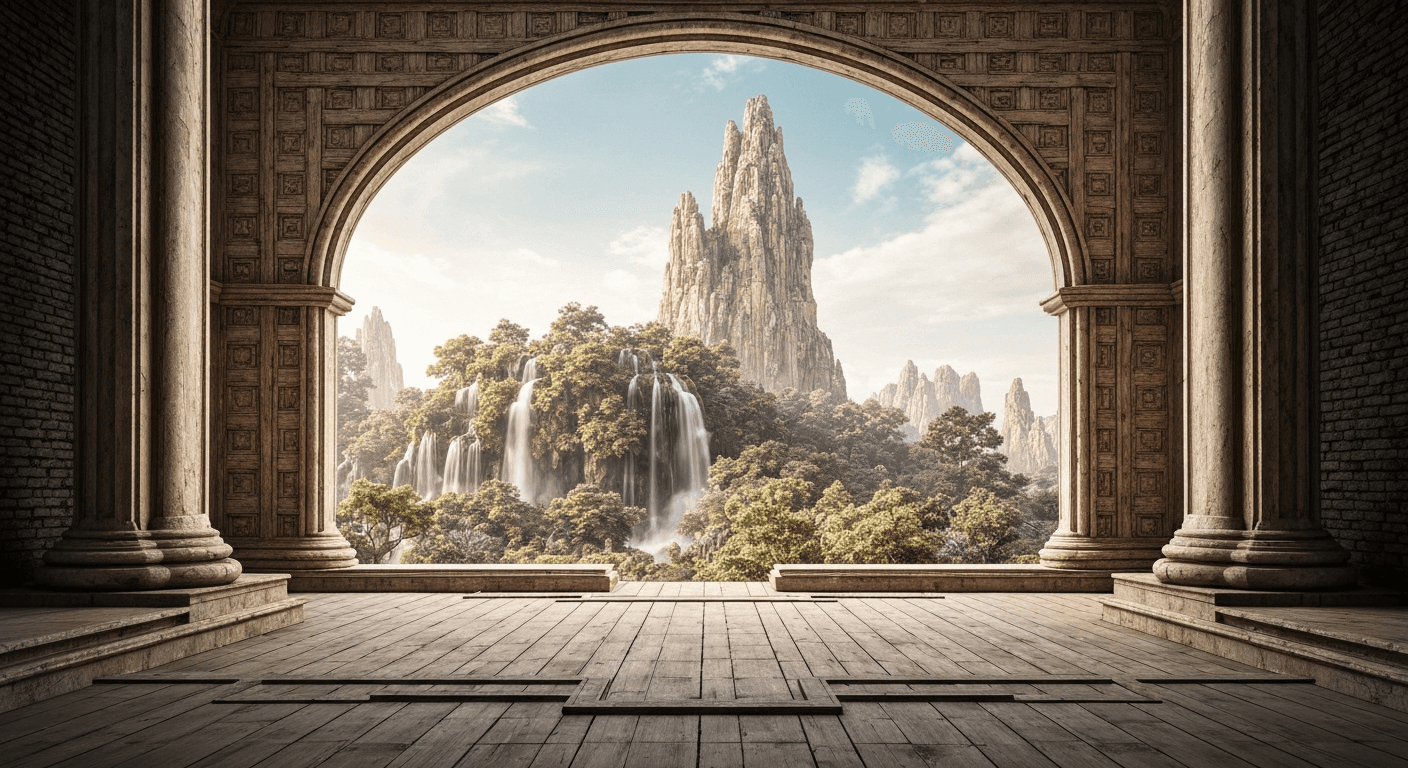
Inpainting ist die Kunst, unerwünschte Dinge verschwinden zu lassen und fehlende Dinge entstehen zu lassen. In Photoshop erfordert das präzise Masken, Klonstempel und Content-Aware-Fill-Tricks. Seedream 5.0 Edit funktioniert per Beschreibung: Sag, was entfernt werden soll, sag, was es ersetzen soll, und erhalte ein nahtloses Ergebnis in 10 Sekunden für 0,10 Dollar. Keine Maske. Kein Pinsel. Keine Vorkenntnisse nötig.
TL;DR
- Objekte entfernen, Elemente ersetzen, Fotos reparieren - alles per Textprompt
- 1 Credits ($0,10) pro Bearbeitung, 5-15 Sekunden
- Kein Maskieren, keine Auswahlwerkzeuge, keine Pinsel
- Licht, Perspektive und Texturen werden automatisch angepasst
- 10 Gratis-Credits = 10 kostenlose Inpainting-Bearbeitungen auf arteza.ai
Was Inpainting eigentlich macht
Traditionelles Inpainting füllt einen bestimmten Bereich mit Inhalt, der zur Umgebung passt. Du malst eine Maske über das, was verschwinden soll, und der Algorithmus füllt die Lücke.
Seedream 5.0 Edit überspringt die Maske vollständig. Du beschreibst in natürlicher Sprache, was entfernt werden soll, und das Modell erkennt selbst, was ausgewählt und wie die Lücke gefüllt werden soll. Bei den meisten Bearbeitungen ist das schneller und präziser als manuelles Maskieren.
Bearbeite dein erstes Foto mit KI
Keine Photoshop-Kenntnisse nötig. Schreib einfach, was geändert werden soll. 0,10 Dollar pro Bearbeitung.
Seedream 5.0 Edit kostenlos ausprobieren5 kostenlose Generierungen · Keine Kreditkarte erforderlich
Die drei Inpainting-Aufgaben
1. Objekte entfernen
Sag dem Modell, was gelöscht werden soll:
"Remove the person in the red jacket on the left"
"Delete the trash can from the sidewalk"
"Remove the watermark from the bottom right corner"
"Erase all the power lines from the sky"
"Remove the photo-bomber behind the couple"
Das Modell füllt die Lücke kontextbezogen - Hintergrund, Licht und Textur werden dabei angeglichen.
2. Objekte ersetzen
Tausche ein Element gegen ein anderes aus:
"Replace the sedan in the driveway with a vintage convertible"
"Change the plain wall to exposed red brick"
"Swap the coffee cup for a cocktail glass"
"Replace the backdrop with a wooden panel wall"
3. Fotos reparieren
Beschädigte Fotos wiederherstellen:
"Remove scratches and dust spots from this old photo"
"Repair the tear in the corner of the image"
"Fix the faded area in the middle of the photo"
"Remove water damage stain from the top of the image"
Präzise Prompts: der Schlüssel zu sauberen Ergebnissen
Der Unterschied zwischen einem sauberen und einem unsauberen Inpaint liegt in der Genauigkeit. Vergleich:
| Vage | Präzise |
|---|---|
| "Remove the person" | "Remove the person in the blue shirt on the right" |
| "Clean up the background" | "Remove the trash can and the street sign in the background" |
| "Fix the photo" | "Remove scratches on the face and dust in the sky" |
| "Delete the thing" | "Remove the traffic cone in the foreground" |
Nenne immer das Objekt und seinen Standort. Das Modell arbeitet mit klaren Zielvorgaben deutlich präziser.
Häufige Anwendungsfälle beim Entfernen
Touristen entfernen
"Remove all the tourists and background people, keep only the main subject and landmark"
Schilder und Texte entfernen
"Remove the street sign on the left and the store text above the door"
"Erase all text and signage from the building, keep the structure"
Fahrzeuge entfernen
"Remove the parked cars from the street, preserve the buildings and sidewalk"
"Delete the van in the background, keep everything else"
Störendes am Himmel
"Remove all power lines, cables, and telephone poles from the sky"
"Delete the airplane contrails, leave a clean sky"
Ablenkende Hintergrundobjekte
"Remove the construction crane in the background"
"Delete the billboard on the right side of the frame"

Willst du solche Ergebnisse? Seedream 5.0 Edit kostenlos testen →
Workflows zum Ersetzen von Objekten
Kleidung ändern
"Replace the t-shirt with a navy blue button-down shirt"
"Change the dress from red to emerald green"
"Swap the casual jacket for a formal black blazer"
Umgebung ändern
"Replace the wooden table with a marble countertop"
"Change the plain wall to exposed brick"
"Swap the modern couch for a vintage leather chesterfield"
Produkte austauschen
"Replace the coffee cup with a tea mug, same style"
"Change the bottle to a can, keep the label area"
"Swap the apple for an orange in the same position"
Workflow zur Fotorestaurierung
Alte Fotos brauchen oft mehrere Bearbeitungsschritte:
Schritt 1 - Schäden entfernen: "Remove all scratches, dust spots, and tears from this photograph, preserve the subjects and details"
Schritt 2 - Verblassung korrigieren: "Restore faded contrast and recover lost detail in shadows and highlights"
Schritt 3 - Schärfen: "Sharpen facial features and fine details, reduce any blur"
Optionaler Schritt 4 - Kolorierung: siehe Kolorierungsanleitung
Gesamtkosten für eine vollständige Restaurierung: 3-4 Credits = 0,30-0,40 Dollar.
Zum Vergleich: professionelle Fotorestaurierungsdienste kosten 50-500 Dollar pro Foto.
Lass Ablenkungen verschwinden
Keine Masken. Kein Klonstempel. Nenn einfach, was entfernt werden soll, und das Modell fuellt die Luecke nahtlos. Die ersten 7 Bearbeitungen sind kostenlos.
Erstes Inpainting kostenlos ausprobierenFortgeschrittene Techniken
Selektives Entfernen mit Erhaltung
Wenn etwas in der Nähe eines Motivs entfernt werden soll, sei explizit darin, was erhalten bleiben soll:
"Remove the backpack the person is holding, preserve the person and their pose exactly"
"Delete the drink in the subject's hand, keep the hand and fingers natural"
Mehrere Entfernungen in einem Schritt
Spare Credits, indem du mehrere Entfernungen kombinierst:
"Remove the person on the left, the trash can on the right, and the power lines in the sky"
Ein Prompt, drei Entfernungen, 1 Credit.
Ersetzen mit spezifischem Kontext
"Replace the concrete background with lush green trees, matching the outdoor lighting"
"Change the floor from tile to hardwood, matching the warm room lighting"
Wo Inpainting an Grenzen stößt
Auch Seedream 5.0 Edit hat seine Grenzen. Das solltest du wissen:
- Sehr große Entfernungsbereiche (mehr als 50 % des Bildes) erfordern möglicherweise mehrere Durchgänge
- Komplex überlappende Motive - eine Person zu entfernen, die eine andere berührt, ist schwieriger als isolierte Objekte
- Fein spiegelnde Oberflächen (Spiegel, Wasser) - können Artefakte erzeugen
- Texterhaltung - Text in der Nähe von anderem Text zu entfernen ist schwierig
- Extreme Lichtsituationen - starkes Gegenlicht oder tiefe Schatten
Für diese Sonderfälle empfiehlt es sich, mehrere Durchgänge zu kombinieren oder das Ergebnis in Photoshop nachzubearbeiten.
Praxisworkflow: Urlaubsfoto bereinigen
Ausgangsbild: Wunderschönes Sonnenuntergangs-Foto eines Wahrzeichens mit Touristen und Stromleitungen.
Bearbeitung 1: "Remove all tourists and background people from the scene" (1 Credits)
Bearbeitung 2: "Remove all power lines and cables from the sky" (1 Credits)
Bearbeitung 3: "Clean up the foreground: remove litter and any distracting objects" (1 Credits)
Gesamt: 3 Credits = 0,30 Dollar. Ergebnis: postkartentauglicher Sonnenuntergangsshot.
Praxisworkflow: Produktfoto aufbereiten
Ausgangsbild: Produktaufnahme mit Staubflecken und Fingerabdrücken.
Bearbeitung 1: "Remove all dust specks, fingerprints, and smudges from the product surface" (1 Credits)
Bearbeitung 2: "Clean up background: remove minor scuffs and imperfections on the backdrop" (1 Credits)
Gesamt: 2 Credits = 0,20 Dollar. Ergebnis: E-Commerce-fertiger Produktshot.
Häufige Fehler
| Fehler | Lösung |
|---|---|
| Unklares Ziel | Objekt konkret benennen |
| Kein Standort angegeben | "on the left", "in the background" ergänzen |
| Zu viele Anweisungen | Prompt auf ein oder zwei klare Aktionen beschränken |
| Falsches Objekt entfernt | Farbe und Position angeben ("red jacket", "left side") |
| Artefakte im gefüllten Bereich | Zweiten Durchgang zur Bereinigung starten |
Kosten im Vergleich
| Aufgabe | Seedream 5.0 Edit | Alternative |
|---|---|---|
| Touristen entfernen | $0.10 | 5 Min. Photoshop oder $10 auf Fiverr |
| Altes Foto restaurieren | $0.30 | $50-$300 Restaurierungsservice |
| Objekt entfernen | $0.10 | 10 Min. manuelle Arbeit |
| Element ersetzen | $0.10 | 20 Min. Photoshop-Compositing |
Preise
| Paket | Credits | Preis | Inpaints |
|---|---|---|---|
| Starter | 60 | $5 | 60 |
| Creator | 300 | $25 | 300 |
| Pro | 700 | $50 | 700 |
| Studio | 1.800 | $120 | 1.800 |
Monatliche Credits werden mit jedem Abrechnungszyklus erneuert. Aufgeladene Credits verfallen nicht. Vollständige Preisübersicht.
Nächste Schritte
- Objekte zu Fotos hinzufügen
- Hintergrundersetzung
- Alte Fotos kolorieren
- Vollständige Bearbeitungsanleitung
Erstes Inpainting kostenlos ausprobieren → - 10 Credits bei der Registrierung.
Seedream 5.0 Edit ausprobieren - Jetzt!
Laden Sie Ihr Bild auf der Erstellungsseite hoch, um mit der Bearbeitung zu beginnen.
5 kostenlose Generierungen · Keine Kreditkarte erforderlich