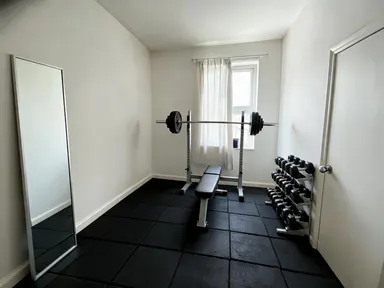
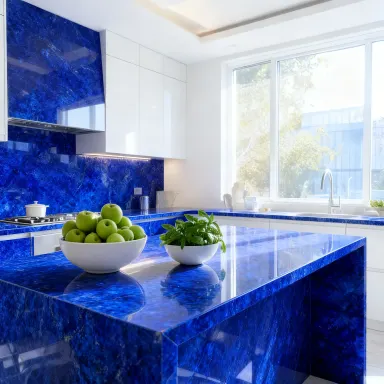
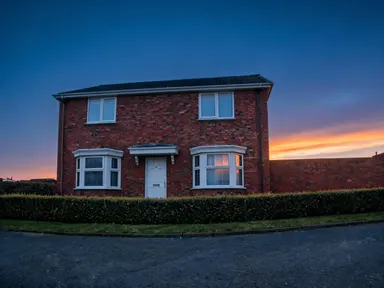
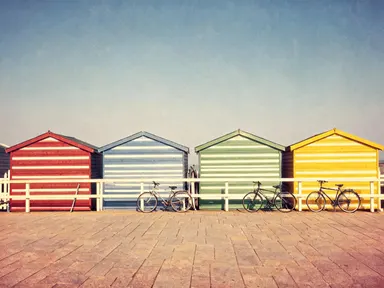
Made with this app
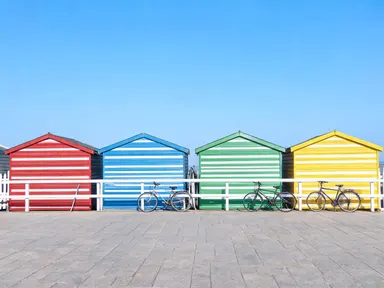
AI Recolor takes a photograph you upload and returns it in a completely different palette, with every shape, edge, pose and detail left exactly where it was. Choose from eight grading styles and the app handles the instruction: no prompt writing required. It is built for photographers, designers, brand teams and content creators who need to see a shot in a new colour world quickly, without touching the composition or reaching for a desktop editor.
How to use this app
- 1
Upload your file. There is no prompt you have to write.
- 2
Pick a look from the visual library, add a note of your own if you want one, then press Generate.
- 3
Watch your result appear in the gallery within moments.
- 4
Download, share, or generate again with a new idea.
What you can make
Exploring mood for a shoot
A photographer with a finished portrait wants to see whether it reads better as a warm, faded analog memory or a cool cinematic frame. Uploading once and switching between "Faded film" and "Teal and orange" makes that comparison concrete before any retouching begins.
Brand palette testing
A designer needs to show a client how a hero product photograph feels across different seasonal campaigns. Running the same shot through "Earthy", "Pastel" and "High key" produces three distinct moods from one source image, all with the product detail intact.
Social content variation
A content team publishes across several channels that each carry a different visual tone. Grading a single lifestyle photograph with "Neon" for a bold feed post and "Pastel" for a softer story gives them two usable assets without a second shoot.
Portfolio presentation
A set designer or interior stylist wants to show how a finished space reads in editorial versus commercial contexts. The "Ink duotone" grade gives a moody magazine feel, while "High key" pushes it toward a clean catalogue look, with the furniture and layout untouched.
Film and drama lookdev
A director of photography or colourist exploring a grade reference for a project can run a still frame through "Noir" for a hard, contrasty black and white reference or "Teal and orange" for a blockbuster baseline, then bring those references into a grading conversation.
Shots to try
Tips for better results
Start with well-exposed originals
The grade works with the tonal range already in your photograph. An underexposed or heavily clipped shot gives the app less to work with, and the result will reflect that. A correctly exposed original gives each palette the full range of shadows and highlights it is built around.
Compare at full size before using
AI Recolor redraws the image rather than laying a filter over it, so small details can shift slightly. Set your original and the graded result side by side at actual size, especially if the photograph contains fine text, a label or a face that needs to be exact.
Use the text box for refinements
The library choice sets the palette, but the optional text box under it lets you add one extra instruction, such as keeping a specific area cooler or noting a detail that matters. Keep it short and specific: the library choice is still the main decision.
Try contrasting tiles on the same shot
Because the composition never changes, the same photograph graded with "Ink duotone" and "Earthy" can sit in the same presentation as intentional variations rather than alternative edits. Running two or three tiles on one strong image is a practical way to build a mood board.
When to choose this app
AI Recolor is the right choice when you have a photograph you want to keep and a palette you want to change. AI Sky Replacement swaps the sky and shifts the light across everything in the frame to match, which alters the image rather than grading it. AI Room Converter refits an entire room for a different purpose, again changing the image substantially. When the goal is a different colour world around exactly the same subject, the same pose and the same detail, AI Recolor is the specific tool for that job.
Frequently asked questions
Does the app change anything other than the colours?
No. The subject, the framing, the pose, the composition and the fine detail are all preserved as closely as the process allows. Only the colours change. Because the app redraws the image rather than applying a filter, very small details can shift slightly, so comparing the result with your original at full size before final use is good practice.
Can I use it to colourise a black and white photograph?
No. AI Recolor is a colour grade, not a colourisation tool. It works with the colour information already present in your photograph and applies a new palette to it. A black and white original has no colour channel for the grade to work from, so the result will remain in the same tonal range rather than gaining realistic colour.
What happens to text or writing already in my photograph?
Any text, label, sign or number in the original is redrawn along with the rest of the image, so it may come back slightly imperfect. The app does not add writing of its own, and the optional text box cannot instruct it to place words, captions or logos on the result.
Can I change just one object in the frame and leave the rest alone?
No. AI Recolor grades the whole photograph. It does not isolate a single element and recolour it independently. If you need one object in a different colour with everything else unchanged, that is a selective masking task suited to a manual editing tool.
Which file types can I upload?
The app accepts JPG, PNG, WebP and GIF files. Drag the file into the upload area or pick it from your device. One photograph per session is all the app needs.
What does the optional text box let me do?
It accepts one short additional instruction to refine the grade: noting a particular detail you want preserved, or nudging the warmth in a specific area. The library choice is still the primary decision and the app works perfectly well without anything in the box.
How much does it cost?
Each generation costs 1 credit. New accounts get free credits to try it out.
Do I need any editing skills?
No. Upload your photo, pick the look you want from the library, and the app writes the full instruction for you behind the scenes. There is nothing to install and nothing to configure. A small optional box lets you add one line in your own words, but the app works without it.
Can I use the results commercially?
Yes. Content you generate is yours to use, subject to our content licenses.
How long does a generation take?
Most generations finish in under a minute, and you can watch progress live in the gallery.