AI Portrait Retouching with Seedream v4.5 Edit
Clean backgrounds, subtle skin smoothing, and natural color correction - Seedream v4.5 Edit handles portrait retouching at 4MP without the uncanny-valley look.
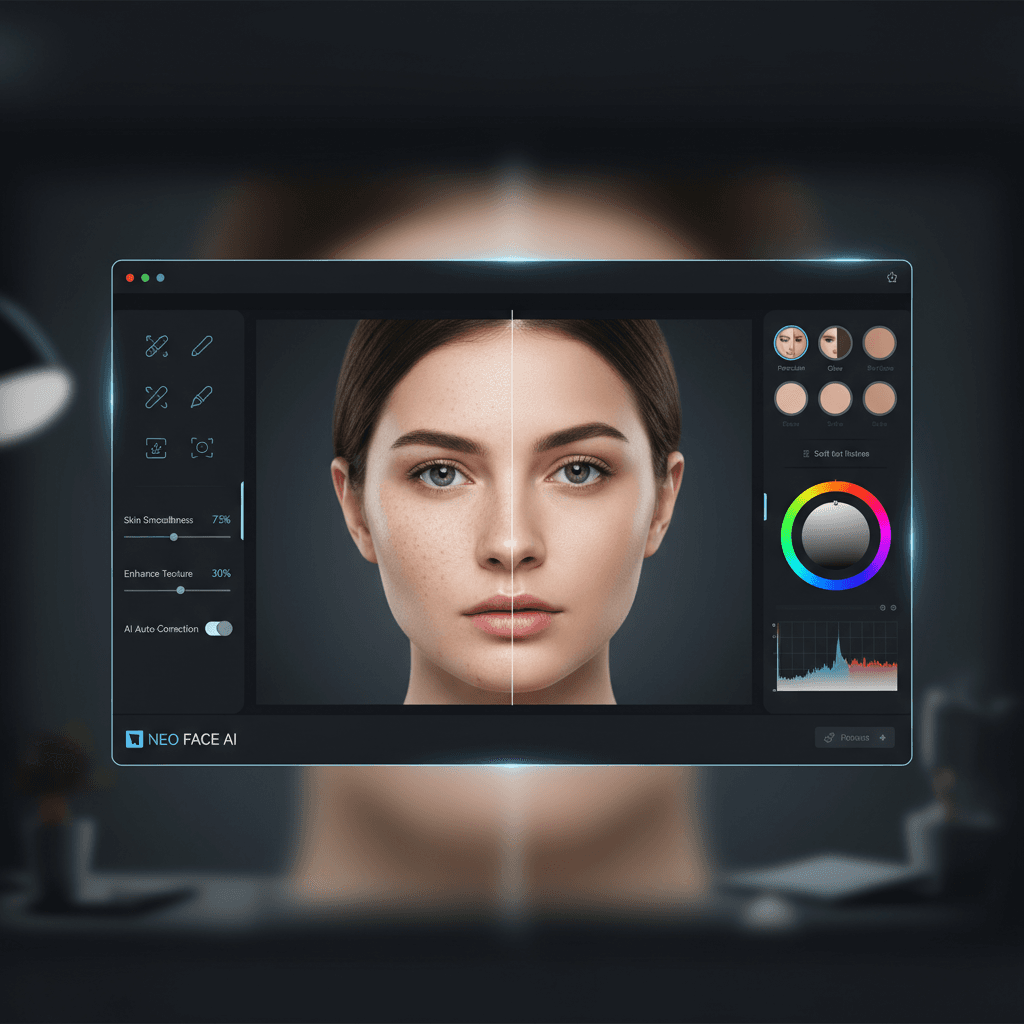
Portrait retouching has a specific bar: the subject has to still look like themselves. Over-retouch and you get plastic skin and alien eyes. Under-retouch and you leave obvious flaws. Seedream v4.5 Edit lands in the right zone for non-destructive portrait work - subtle skin cleanup, background tidy-ups, color grading, and composite variants that preserve identity. This tutorial covers the prompt patterns, the limits, and the workflow that professional retouchers actually use.
TL;DR
- Seedream v4.5 Edit handles portrait retouching at 4MP in ~45 seconds per edit
- Strong identity preservation when prompted correctly - no uncanny valley
- Best for backgrounds, color grading, and subtle skin cleanup
- Not a replacement for pixel-level retouching in Photoshop
- 1 credit ($0.10) per run, 10 free on signup
What Portrait Retouching Means in v4.5
There are two kinds of portrait retouching:
- Creative retouching - changing backgrounds, applying styles, adjusting the mood of the image
- Technical retouching - skin cleanup, blemish removal, dodge/burn, frequency separation
Seedream v4.5 Edit excels at the first category. For the second, it can handle subtle cleanup if you prompt carefully, but Photoshop still wins on precision.
In practice, the best workflow for most portrait photographers is: use v4.5 for backgrounds, color grading, and composite variants; use Photoshop for final micro-retouching.
5 次免费生成 · 无需信用卡
Identity Preservation: The Critical Feature
When you edit a portrait, the #1 rule is: the person must still look like themselves. Any drift in facial features, skin tone, or expression breaks the photo.
v4.5 is strong on this when you prompt correctly. The key phrase:
Preserve the subject's face, facial features, skin tone, eye color,
and expression exactly. Do not alter identity.
Include that in every portrait edit prompt. Without it, the model may subtly reinterpret features.
Try Seedream v4.5 Edit - high-res AI editing
4MP output, up to 10 input images, $0.10 per edit. Free credits, no card.
Try Seedream v4.5 Edit FreePrompt Patterns for Portrait Retouching
Pattern 1: Background Cleanup
Clean up the background behind the subject. Remove clutter and
replace with a soft, neutral studio cyclorama in light gray.
Preserve the subject's face, pose, clothing, and expression exactly.
Maintain the existing lighting on the subject. Output at 2048x2048.
Pattern 2: Subtle Skin Smoothing
Apply subtle skin smoothing to the subject while preserving all
skin texture, pores, and natural detail. Do not make the skin look
plastic or airbrushed. Preserve facial features, expression, and
identity exactly. Output at 2048x2048.
The key phrase: "preserve all skin texture, pores, and natural detail." Without it, the model can over-smooth and produce the plastic look.
Pattern 3: Color Grade Application
Apply a warm editorial color grade to this portrait - soft golden
tones, lifted shadows, subtle film grain. Preserve the subject's
face, eye color, and skin tone exactly. Output at 2048x2048.
Pattern 4: Background Swap
Replace the background with a softly blurred outdoor park scene
during golden hour. Preserve the subject's pose, clothing, face,
and hair exactly. Match the subject lighting with warm directional
light from camera-right. Output at 2048x2048.
Pattern 5: Hair Cleanup
Clean up stray hair flyaways at the edges of the subject's head.
Preserve overall hair style, volume, and color exactly. Do not
alter facial features or expression. Output at 2048x2048.
Worked Example: Headshot Session
A client wants three variants of their professional headshot:
- Clean white background
- Modern office backdrop
- Warm outdoor setting
Base photo: A well-lit studio headshot with a distracting busy background.
Variant 1 prompt:
Replace the background with a clean, seamless white cyclorama.
Preserve the subject's face, pose, hair, clothing, and lighting
exactly. Add a subtle soft shadow. Output at 2048x2048.
Variant 2 prompt:
Replace the background with a modern office interior - soft
bokeh blur, neutral colors, large windows with daylight.
Preserve the subject's face, pose, clothing, and facial expression
exactly. Output at 2048x2048.
Variant 3 prompt:
Replace the background with a softly blurred outdoor park scene
at golden hour. Match the subject's lighting with warm directional
light. Preserve face, pose, and expression exactly. Output at 2048x2048.
Three 4MP variants in ~2.5 minutes, 3 credits ($0.30). Delivered to the client same day.

Retouch your first portrait now. Open Seedream v4.5 Edit.
Avoiding the Uncanny Valley
AI portrait editing fails most often in one of these ways:
Failure 1: Over-Smoothed Skin
Symptom: Skin looks plastic, pores disappear, faces look airbrushed.
Fix: Add "preserve all skin texture, pores, and natural imperfections." Explicitly tell the model not to smooth aggressively.
Failure 2: Altered Facial Features
Symptom: Subject's eyes look slightly different, nose shape has shifted, lip shape is off.
Fix: Add "preserve facial features exactly - eye shape, nose shape, lip shape, facial proportions - do not alter any feature." Be explicit.
Failure 3: Skin Tone Drift
Symptom: Subject's skin looks subtly different, often warmer or cooler than original.
Fix: Add "preserve the subject's exact skin tone and color." If color accuracy is critical, consider final grading in Lightroom.
Failure 4: Expression Change
Symptom: Subject looks subtly more or less happy, different micro-expression.
Fix: Add "preserve the subject's exact facial expression and emotion."
Failure 5: Hair Detail Loss
Symptom: Hair looks clumpy, strand detail is gone.
Fix: Add "preserve hair strand detail and natural texture."
The pattern: be explicit about what must not change. v4.5 is obedient but not psychic.
When to Use Photoshop Instead
v4.5 is not a complete replacement for a skilled retoucher. Reach for Photoshop when you need:
- Frequency separation for high-end beauty retouching
- Dodge and burn at pixel level
- Precise jewelry or eye detail enhancement
- Brand-accurate color correction with ICC profiles
- Advanced wrinkle or scar work that needs nuance
- Client-approved retouching with specific feedback
For everything else - backgrounds, color grading, variant creation, general cleanup - v4.5 is faster and easier.
Portrait variants in under a minute
Identity-preserving AI retouching at 4MP. Free credits, no card required.
Open Seedream v4.5 EditThe Hybrid Workflow
Professional portrait photographers using v4.5 typically adopt this hybrid flow:
- Shoot and color grade in Lightroom. Normal pipeline.
- Export high-quality JPEG or PNG.
- Run v4.5 for backgrounds and variants. Generate 2–3 background options per headshot.
- Import back to Photoshop for final retouching. Frequency separation, dodge/burn, micro-adjustments.
- Deliver to client.
This flow gives you the speed of v4.5 for the tedious parts and the precision of Photoshop for the high-value pixels.
Ethical Considerations
AI portrait retouching raises specific concerns:
- Consent. Make sure your model release covers AI-assisted editing.
- Authenticity. If the portrait is for journalism, documentary, or ID purposes, AI editing is usually off-limits.
- Disclosure. For commercial use, some markets require disclosure of AI editing.
- Representation. Be thoughtful about how AI editing affects skin tone, ethnicity, and body representation.
When in doubt, preserve rather than alter. The subject's identity is not yours to reinterpret.
Further Reading
Get Started
Open Seedream v4.5 Edit, upload a portrait, and try the background swap pattern above. Your 10 free credits cover six full portrait edits - enough to decide whether the tool deserves a slot next to your Lightroom and Photoshop workflow. For pricing visit our pricing page.
立即试用 Seedream v4.5 Edit
在创作页面上传您的图片以开始编辑。
5 次免费生成 · 无需信用卡