Made with this app
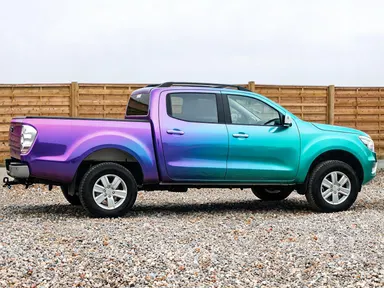
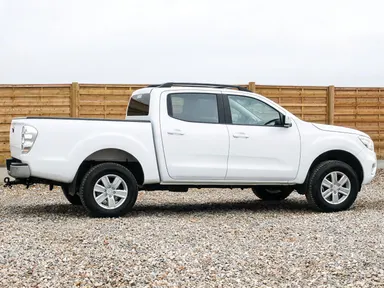
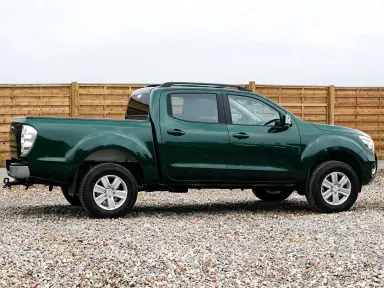
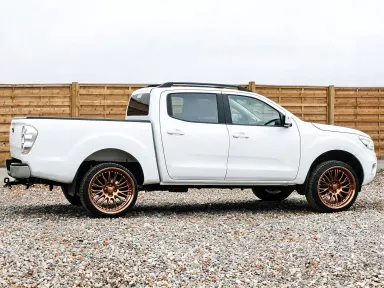
AI Car Customizer lets you see your own car wearing a completely different finish before you commit to anything. Upload a photo of your vehicle, pick one of twenty-four paint, wrap, wheel, or styling presets from the visual library, and the app rebuilds the image with that treatment applied to your specific car. An optional text box lets you add one extra detail. It is built for owners considering a respray, modifiers planning a build, and designers presenting concepts to clients.
How to use this app
- 1
Upload your file. There is no prompt you have to write.
- 2
Pick a look from the visual library, add a note of your own if you want one, then press Generate.
- 3
Watch your result appear in the gallery within moments.
- 4
Download, share, or generate again with a new idea.
What you can make
Respray Decision Before the Workshop
Before booking a body shop, upload a straight-on photo of your car and try several paint presets back to back. Seeing your actual car in deep glossy British racing green or vivid metallic sunset orange makes the decision concrete rather than abstract, and gives the painter a clear brief.
Wheel and Trim Upgrades
Alloy wheel catalogues show generic cars. Upload your own vehicle and pick a wheel and trim preset to see polished bronze multi-spoke alloys or gloss black alloys sitting exactly where your current wheels sit, against your bodywork, your driveway, your colour.
Stance and Suspension Styling
Modifiers planning a stance build or a lift kit can preview the result before any parts are ordered. The low stance with wide deep dish wheels or the raised suspension with chunky all-terrain tyres preset shows the proportional change on the actual car being modified.
Rally, Race and Livery Concepts
Event organisers and motorsport sponsors can upload a road car and apply the racing livery preset, complete with roundel numbers, a front splitter and a rear wing, to produce a fast concept visual for a pitch deck or social media without a dedicated CGI budget.
Classic and Patina Restoration Planning
Restorers can apply the weathered barn find finish to a clean image to simulate a project car's starting condition for documentation, or apply the wire spoke wheels with whitewall tyres preset to a classic body to visualise a period-correct build before sourcing parts.
Shots to try
Tips for better results
Shoot the Car Straight On
A three-quarter front or side angle gives the app the most surface area to work with. Photos taken from very low angles or with extreme perspective distortion give the styling presets less bodywork to render, and the result can look uneven around the wheel arches and roofline.
Use the Text Box for Specifics
The library preset handles the main transformation, but the optional text box is the place to protect a detail you care about: a personalised plate, a stripe you want kept, or a roof colour that should stay untouched. One clear instruction works better than several at once.
Clean Backgrounds Clarify the Result
The app reads the car against its surroundings to place reflections and shadows correctly. A photo taken in open shade or against a plain wall produces more accurate chrome, mirror and paint rendering than a shot taken in a cluttered or heavily shadowed environment.
Compare Presets on the Same Photo
Because you are uploading the same image each time, running two or three presets on a single photo produces directly comparable outputs. Save each result and view them side by side to make a confident choice between, for example, the flat satin grey and the deep metallic navy blue.
When to choose this app
AI Car Customizer is the right choice when the starting point is a specific car you already own or manage, and the goal is a realistic preview of a physical modification. FLUX Kontext Pro edits images with open text instructions, which suits general image editing tasks rather than a focused library of automotive treatments. AI Camera Angle Changer reshoot a subject from a new point of view rather than restyling its finish. Neither is purpose-built for comparing paint, wrap and wheel options on a single uploaded vehicle the way this app is.
Frequently asked questions
What angle or type of photo works best for an upload?
A three-quarter front angle or a clean side profile shot in even daylight gives the app the most bodywork surface to work with. Avoid heavily cropped images, extreme low angles or photos where the car is partially blocked by other objects, as these reduce how accurately the preset can be applied.
Can I try more than one preset on the same car photo?
Yes. Upload the same photo as many times as you like and select a different library option each run. Because the starting image is identical, the outputs sit cleanly side by side for comparison, which is useful when deciding between two paint colours or two wheel styles.
Will the app change the background or the interior visible through the windows?
The presets are focused on the exterior of the car. The background is generally preserved as-is, and interior details visible through glass are not the target of the transformation. Presets that include tinted windows will darken the glass, but the scene behind the car is left in place.
What does the optional text box let me do?
It accepts one short additional instruction, such as keeping a specific trim element unchanged, removing a detail from the result, or specifying a pose or angle note. The library choice is still the primary control, and the app produces good results without any text box entry at all.
Which file formats can I upload?
The app accepts JPG, PNG, WebP and GIF files. Drag the file directly into the upload area or pick it from your device. There is no URL or link field: the upload area is the only way to bring an image in.
Do the wheel presets that say they keep the existing paint colour actually leave the bodywork unchanged?
Those presets are specifically designed to apply only the wheel, trim or body kit change while preserving the original paint colour as closely as possible. If your car is red, it stays red. The focus of the transformation is restricted to the elements named in the preset description.
How much does it cost?
Each generation costs 1 credit. New accounts get free credits to try it out.
Do I need any editing skills?
No. Upload your photo, pick the look you want from the library, and the app writes the full instruction for you behind the scenes. There is nothing to install and nothing to configure. A small optional box lets you add one line in your own words, but the app works without it.
Can I use the results commercially?
Yes. Content you generate is yours to use, subject to our content licenses.
How long does a generation take?
Most generations finish in under a minute, and you can watch progress live in the gallery.