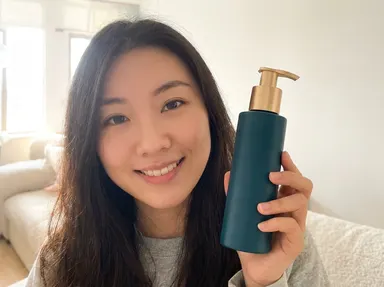
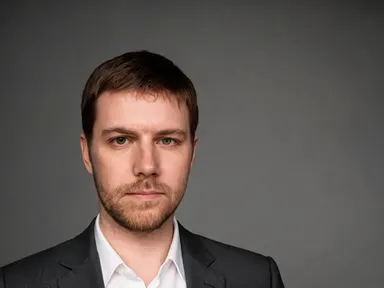
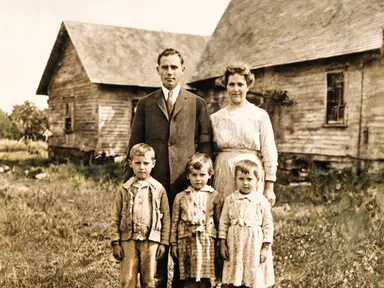
Made with this app
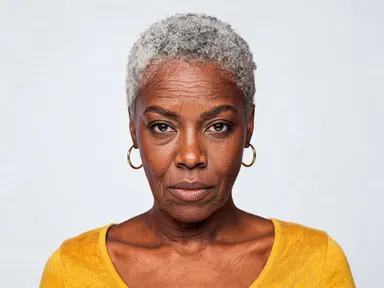
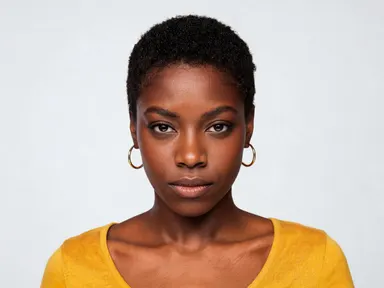
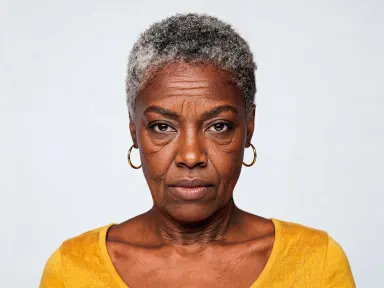
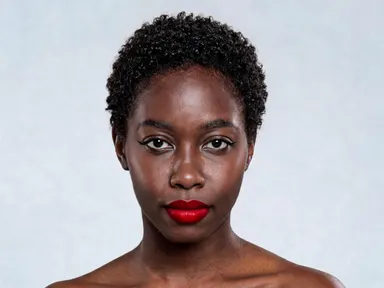
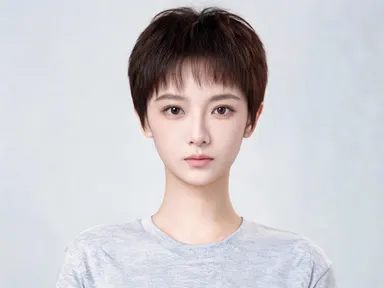
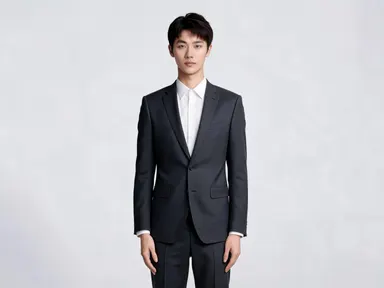
AI Age Changer takes a single photo and renders the same person at eight distinct life stages, from a six-year-old child to a mid-sixties adult, while keeping the face, clothing and overall look consistent across every result. It is built for anyone who needs convincing age progressions or regressions without retouching by hand: storytellers, designers, photographers, and anyone curious about how a face grows and changes across a lifetime.
How to use this app
- 1
Upload your file. There is no prompt you have to write.
- 2
Pick a look from the visual library, add a note of your own if you want one, then press Generate.
- 3
Watch your result appear in the gallery within moments.
- 4
Download, share, or generate again with a new idea.
What you can make
Family reunion visual storytelling
Upload a current portrait of a parent or grandparent and generate versions at six, at fifteen and in their twenties to show the family how they looked at each stage. The consistent face makes side-by-side comparisons feel coherent rather than like guesswork.
Character design across a series
Writers and comic artists who need a protagonist at different points in a long narrative can upload one reference face and produce child, young adult and older adult versions that all read as the same person, saving hours of manual illustration work.
Before-and-after concept visuals
Health, wellness and lifestyle brands that want to show long-term results or lifestyle narratives can generate age-staged portraits from a single approved photo, keeping talent consistent without scheduling multiple shoots.
Social media content series
Creators running throwback or time-lapse themed content can produce a full sequence of age stages from one selfie and publish them as a series, giving audiences a striking visual journey without archival photography.
Educational and documentary illustration
Educators or documentary producers who need to show a historical figure at multiple life stages can use a single reference portrait to generate plausible younger or older versions, grounding the visuals in one consistent face.
Shots to try
Tips for better results
Use a clear, front-facing photo
AI Age Changer performs best when the face is unobstructed, evenly lit and roughly front-facing. Extreme angles, heavy shadows or large sunglasses can reduce how accurately the app carries facial features across age stages.
Pick adjacent stages first
If you need a full sequence, start with stages close to the subject's actual age before jumping to the most distant ones. This gives you a reference point for how the app is interpreting the face before you commit to larger transformations.
Review the full-size file, not the preview
The app renders at 1K or above, so zoom in on the full-size file to assess fine details like hairline texture and skin lines before using the image in print or large-format digital layouts.
Know what separates the adult stages
Each of the eight stages carries a precise physical description that the app applies for you, and the adult ones step by one clear increment each: the thirties add crow's feet and a shallow nose-to-mouth line, the forties deepen that into a definite fold and add a line across the forehead, the fifties bring grey through the hair, and the sixties soften the jawline and thin the lips. Picking the right one first saves you running it twice.
When to choose this app
AI Age Changer is the right choice when your entire job is moving a single face forward or backward in time while keeping everything else locked. FLUX Kontext Pro lets you edit images with text instructions, which means you write the change yourself and the results depend on how precisely you can describe aging. AI Camera Angle Changer reshots a scene from a new point of view rather than altering the subject's age at all. AI Age Changer removes both of those variables by handling the age description for you through a curated visual library, so the output is consistent and the workflow needs no copywriting skill.
Frequently asked questions
How many age stages can I apply to one photo?
There are eight stages in the library, from approximately six years old to the mid-sixties. You can run the same photo through as many stages as you like, one stage at a time, building a complete sequence from a single source image.
Does the app keep clothing and background consistent across stages?
Yes. The transformation is focused on the face and the age-related features described in each stage. Clothing, background and overall composition are carried through so the images read as the same person in the same setting, just at a different point in life.
What file formats can I upload?
The upload area accepts JPG, PNG, WebP and GIF files. You can drag a file directly onto the page or pick one from your device. There is no URL or link field; the file goes in directly.
Will the app work on illustrated portraits or avatars, not just photographs?
It is designed primarily around photographic portraits where realistic skin texture and facial structure are present. Illustrated or cartoon-style faces may produce results, but the accuracy of age-specific details like fine lines and jawline changes is optimised for photographic input.
What happens if the photo includes more than one face?
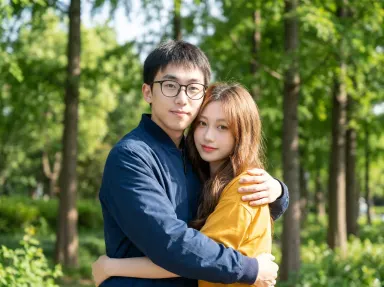
The app works best with a single dominant face in the frame. If multiple faces are present, the transformation may apply unevenly across them or focus on the most prominent one. For group shots, cropping to a single subject before uploading will give the most reliable results.
Can I use the output as a starting point for further edits?
Yes. Every result is delivered at 1K resolution or above, so you can download the file and open it in any image editing application for retouching, compositing or layout work. The high-resolution output is intended to hold up under that kind of downstream production use.
How much does it cost?
Each generation costs 1 credit. New accounts get free credits to try it out.
Do I need any editing skills?
No. Upload your photo, pick the look you want from the library, and the app writes the full instruction for you behind the scenes. There is nothing to install and nothing to configure. A small optional box lets you add one line in your own words, but the app works without it.
Can I use the results commercially?
Yes. Content you generate is yours to use, subject to our content licenses.
How long does a generation take?
Most generations finish in under a minute, and you can watch progress live in the gallery.