Quick Object Removal with Seedream v4.0 Edit
Remove photobombers, power lines, trash, and clutter from any photo with Seedream v4.0 Edit. $0.10 per removal, 30 seconds per fix, no masking required.
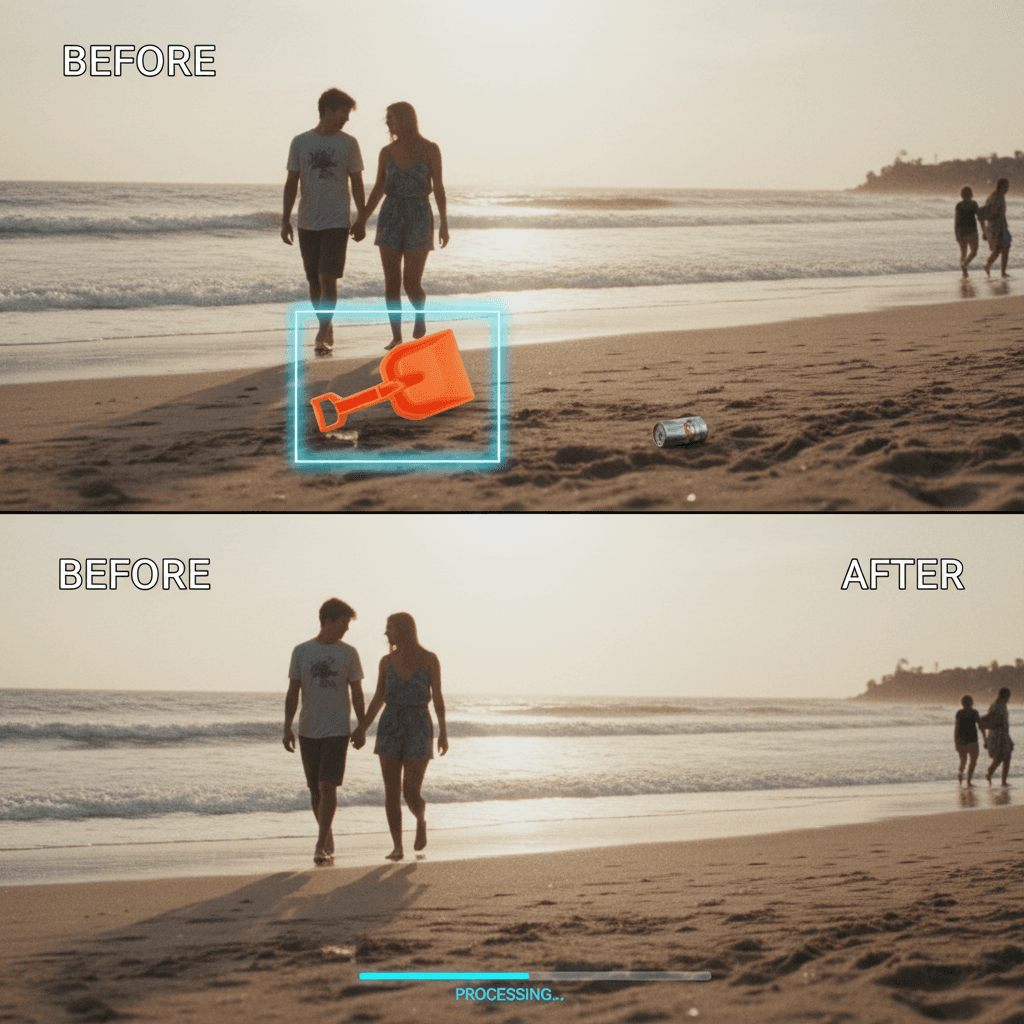
Photoshop's content-aware fill takes 5 minutes and often leaves weird blurry patches. Seedream v4.0 Edit removes the same object in 30 seconds for 6 cents - no masking, no selection tools, just a sentence describing what to delete. This is the practical guide.
TL;DR
- $0.10 per removal - AI object removal with no masking
- Works on people, power lines, logos, clutter, vehicles, and more
- 20-40 seconds per edit
- No masks or selections required
- Start with 10 free credits at arteza.ai
What You Can Remove
Seedream v4.0 Edit handles most common removals well:
- People in the background of portraits or landscapes
- Power lines and cables crossing outdoor shots
- Signs and billboards cluttering scenic views
- Cars and vehicles in street photography
- Trash and clutter in indoor photos
- Photobombers and tourists in travel shots
- Text and watermarks on stock photos
- Reflections on glass or water
- Distracting objects in product photos
What it struggles with: removing objects that are the main subject, very small objects in complex scenes, or removing things that overlap tightly with other critical elements.
5 次免费生成 · 无需信用卡
The Prompt Formula
Good removal prompts follow a simple structure:
"Remove [what] on [where]"
Examples:
"Remove the person on the left side"
"Remove the power lines at the top of the frame"
"Remove the trash can in the background"
"Remove the car parked behind the subject"
"Remove the watermark in the bottom right"
The what identifies the object. The where helps the model target the right one if there are multiple candidates.
Try Seedream v4.0 Edit - simple AI image editing
AI image editing at just $0.10 per edit. Free credits, no card needed.
Try Seedream v4.0 Edit FreeWalkthrough: Removing a Photobomber
Scenario: You took a beach photo of your family. A stranger walked through the frame on the right side.
Step 1: Upload the photo to Seedream v4.0 Edit.
Step 2: Type:
"Remove the person walking on the right side of the beach"
Step 3: Click generate. Wait 30 seconds.
Step 4: Download the result. The stranger is gone, and the beach sand behind them is reconstructed to match.
Cost: $0.10. Time: under a minute.
Compare to the Photoshop equivalent: select photobomber → refine edge → use clone stamp → heal brush → blend → manually match sand texture. A skilled retoucher might take 5 minutes. A beginner, 30 minutes.
Walkthrough: Removing Power Lines
Scenario: You shot a gorgeous sunset but power lines are crossing the frame.
Prompt:
"Remove all power lines and cables from the sky"
One generation. 30 seconds. Clean sunset.
Power lines are one of the most common landscape photo problems and one of the things v4.0 Edit handles best.
Walkthrough: Removing Clutter
Scenario: Product shot has pens, papers, and a coffee mug cluttering the background.
Prompt:
"Remove the pens, papers, and coffee mug from the background"
Generation: 30 seconds. Result: clean background with the product as the star.
For multiple objects in the same prompt, list them with commas. The model handles small multi-object removals in one pass.

Remove your first object for free. Open Seedream v4.0 Edit and clean up a photo.
When to Use Multiple Passes
Sometimes one prompt isn't enough - especially if you have several distinct objects to remove in different parts of the image. Run them as separate edits:
Pass 1: "Remove the person in the background"
Pass 2 (on the result of pass 1): "Remove the trash can in the corner"
Pass 3 (on the result of pass 2): "Remove the power lines at the top"
Total: 3 edits × $0.10 = $0.30. Sometimes cheaper and cleaner than stuffing everything into one prompt.
What Makes Removals Fail
Problem 1: Vague location. "Remove the person" doesn't help when there are three people in frame. Say "the person on the left" or "the person in red."
Problem 2: The object IS the subject. You can't remove the main subject - the model will often refuse or produce weird results. Remove background elements instead.
Problem 3: Object overlaps critical elements. If the power lines are in front of a bird you want to keep, the model may remove the bird too. Be specific.
Problem 4: Very small objects in busy scenes. Tiny details in complex backgrounds can be missed. v4.5 Edit handles these better.
Cost for High-Volume Removal Work
| Removals | Cost |
|---|---|
| 10 | $1.00 |
| 50 | $5.00 |
| 100 | $10.00 |
| 500 | $50.00 |
A wedding photographer removing minor background distractions across 300 shots pays $30. A manual retoucher would charge $150-$300 for the same batch.
10 free removals on signup
Free credits means 10 free object removal edits. No card required.
Try Removal FreeTips for Cleaner Removals
- Be specific. "The person in the red jacket on the left" beats "the person."
- Don't remove tiny details all at once. Split into passes if needed.
- Describe what should remain too. "Remove the car, keep the building intact" can help.
- Start with the biggest distraction first. Then work down to smaller ones.
- Iterate on misses. Rephrase rather than accepting a bad result.
Related Reading
- Seedream v4.0 Edit complete guide
- How to fix bad photos with Seedream v4.0
- Seedream v4.0 Edit for ecommerce
Final Word
Object removal used to be a specialized skill. Seedream v4.0 Edit turns it into a sentence. At $0.10 per removal, you can clean up your entire photo library for less than the cost of lunch. Sign up, grab your free credits, and erase the first photobomber you can find.
立即试用 Seedream v4.0 Edit
在创作页面上传您的图片以开始编辑。
5 次免费生成 · 无需信用卡