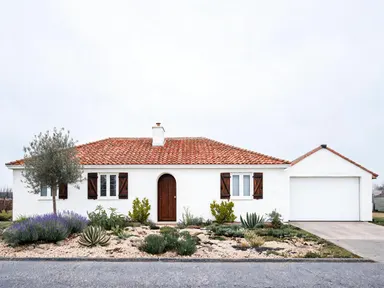
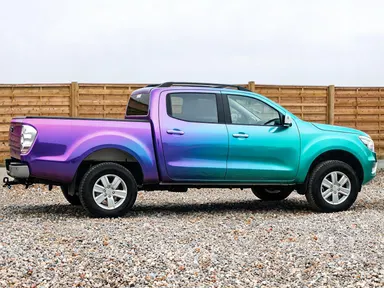
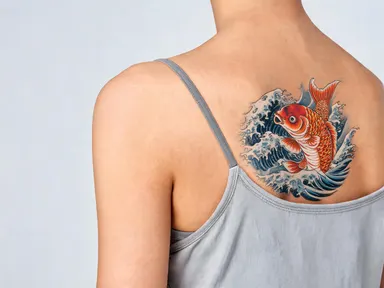
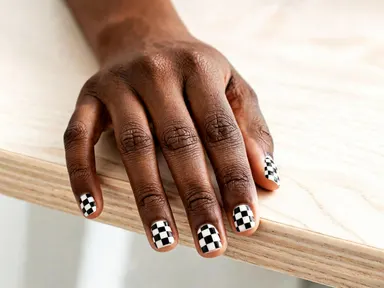
Made with this app
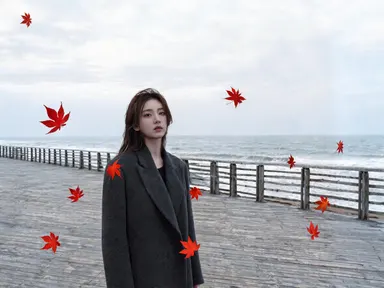
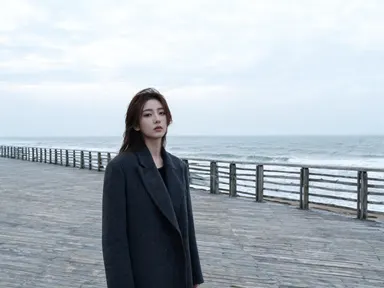
AI Photo Elements adds physical materials and atmospheric effects directly into your existing photos. Upload a portrait, product shot, flat lay or landscape, choose an element from the library, and the app composites it into the scene with matched light, depth and color. It is built for photographers, content creators, brand teams and social media managers who want a finished, layered image without opening a compositing tool or sourcing new stock.
How to use this app
- 1
Upload your file. There is no prompt you have to write.
- 2
Pick a look from the visual library, add a note of your own if you want one, then press Generate.
- 3
Watch your result appear in the gallery within moments.
- 4
Download, share, or generate again with a new idea.
What you can make
Product Photography Enhancement
A skincare bottle shot on a white surface gains immediate context when you add water droplets or lush green foliage. The app matches the existing studio light so the added element reads as part of the original shoot, not a paste-in, saving a full reshooting session.
Seasonal Campaign Refresh
Take one hero image and run it through the library with falling snow for winter, fresh flowers in bloom for spring, and drifting autumn leaves for fall. Three campaign visuals from a single upload, each with atmosphere that suits the season without reshooting the subject.
Editorial Portrait Styling
Photographers building mood boards or editorial series can layer gold foil accents, soft drifting smoke or glowing bokeh lights behind a portrait to establish tone. The app preserves facial consistency while the element wraps naturally around the subject.
Event and Celebration Graphics
Add falling confetti or glowing neon signage to an event venue photo or a speaker portrait for social announcements. The optional free text box lets you specify a confetti color or a detail to exclude so the final image fits the brand palette.
Landscape and Travel Content
A flat midday landscape becomes dramatic when distant mountain peaks are composited into a hazy background, or when breaking ocean waves are layered into a coastal scene with a sky that does not already show them. Useful for travel brands building consistent editorial libraries.
Shots to try
Tips for better results
Start With Clean, Well-Lit Uploads
The app matches the added element's color and lighting to your existing scene. Photos with clear, consistent lighting give the compositing more accurate color and shadow information, so the added element lands with better depth and realism.
Use the Text Box for Placement Details
The library choice sets the element; the optional free text box is where you direct specifics: which corner smoke should drift from, a color note for confetti, or a request to keep a logo area clear. One short, concrete instruction is more useful than a long description.
Match Element Scale to Subject
A macro product shot benefits from fine details like water droplets or faceted crystals. A wide landscape handles larger elements like breaking ocean waves or distant mountain peaks. Choosing an element whose natural scale fits your frame produces a more convincing composite.
Leverage 1K Resolution for Print and Large Format
The app outputs at 1K and above, so the composited image holds up at print sizes and on large digital displays. If the final use is a banner, a poster or a high-resolution social carousel, export directly without upscaling separately.
When to choose this app
AI Photo Elements is the right choice when you already have a photo you want to keep and need a physical element added to it convincingly. FLUX Kontext Pro edits images with text instructions, which suits freeform structural changes rather than element compositing from a curated library. AI Camera Angle Changer reshots the same subject from a new viewpoint, addressing perspective rather than layered materials or atmosphere. When the job is specifically about adding smoke, florals, gold foil, crystals or any other element from the library to a photo you already like, this app is built for exactly that outcome.
Frequently asked questions
What file formats can I upload?
The app accepts JPG, PNG, WebP and GIF files. You drag the file into the upload area or pick it from your device. The original file is not altered; the output is a new composited image delivered at up to 1K resolution.
Can I control where in the photo the element appears?
The app places the element based on the scene's composition and depth cues. If you have a preference, use the optional free text box beneath the library to describe a location or a placement note. The app treats that as an additional instruction layered on top of your library choice.
Will the element match the lighting in my original photo?
Yes. The app reads the existing light direction, color temperature and shadow quality in your upload, then renders the chosen element so it appears lit from the same source. A hard side-lit product shot and a soft diffused portrait will each receive a differently adapted composite.
Can I add text or a graphic overlay alongside the element?
The library is focused on physical and atmospheric elements rather than typography. However, the app includes clean text rendering capability, so if you use the free text box to request a short word or label alongside the element, it can render legible text as part of the composition.
What happens to faces or key subjects when an element is added?
The app identifies the primary subject in your photo and treats it as a fixed anchor. Elements wrap around rather than obscure the subject unless you specifically note otherwise in the free text box. Faces in particular are kept consistent through the compositing process.
Is there a way to remove an element from part of the image, like protecting a logo area?
There is no masking tool in the interface, but you can use the free text box to describe an area you want left clear, for example 'keep the lower-right corner free of smoke'. The app will attempt to honor that instruction, though results depend on the complexity of the scene.
How much does it cost?
Each generation costs 1 credit. New accounts get free credits to try it out.
Do I need any editing skills?
No. Upload your photo, pick the look you want from the library, and the app writes the full instruction for you behind the scenes. There is nothing to install and nothing to configure. A small optional box lets you add one line in your own words, but the app works without it.
Can I use the results commercially?
Yes. Content you generate is yours to use, subject to our content licenses.
How long does a generation take?
Most generations finish in under a minute, and you can watch progress live in the gallery.