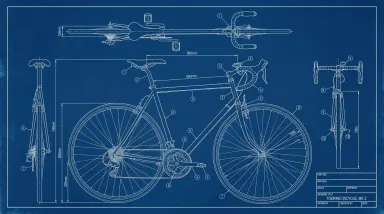
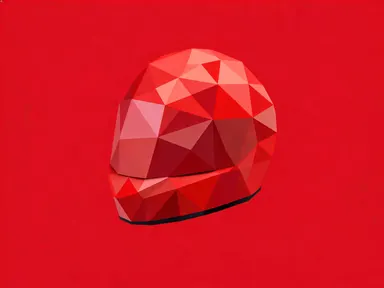
Made with this app
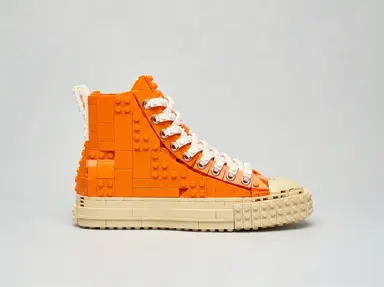
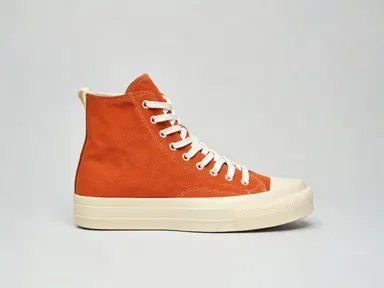
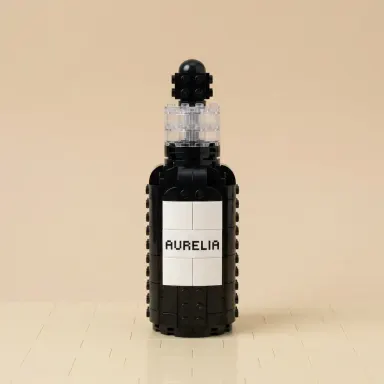
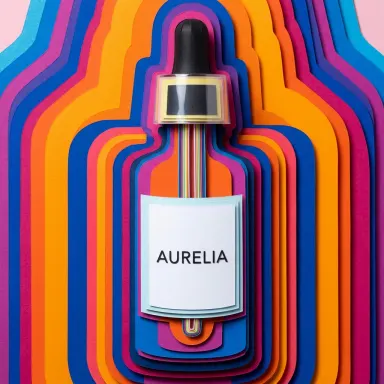
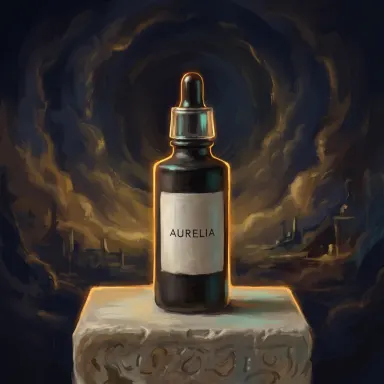
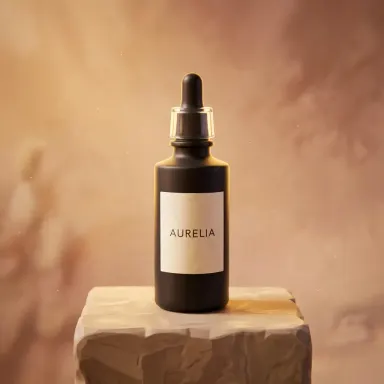
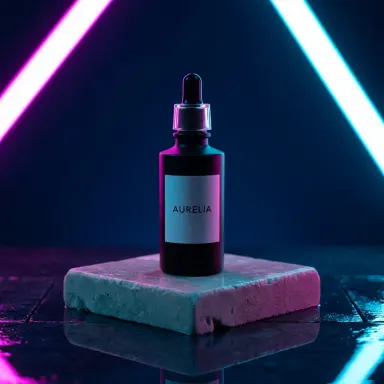
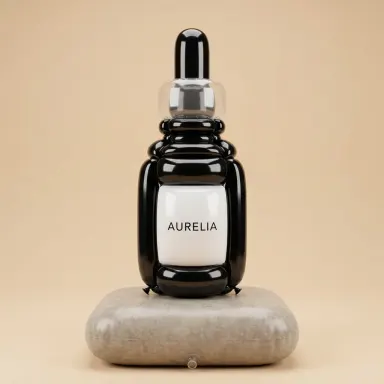
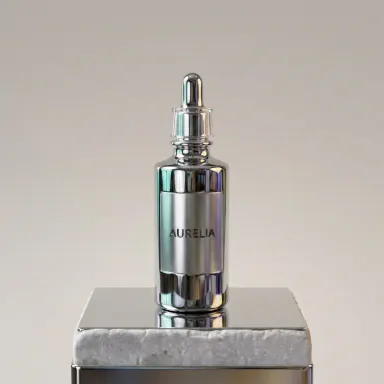
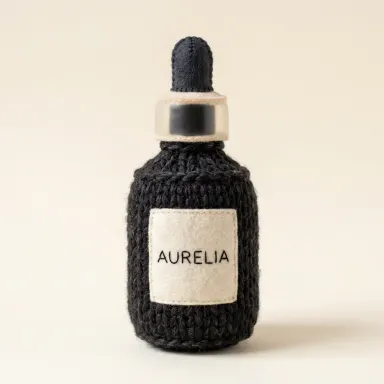
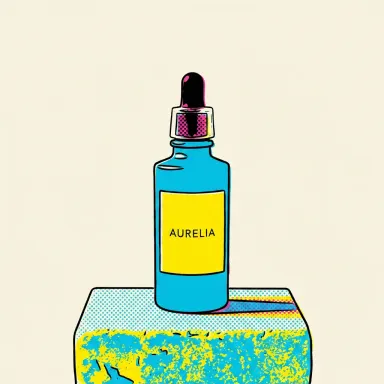
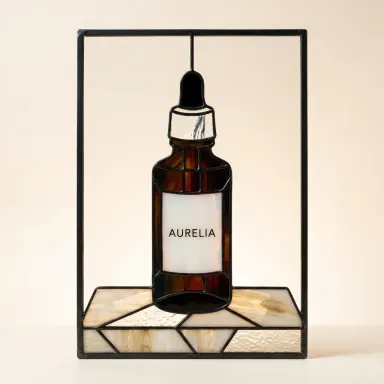
AI Product Restyle takes a photograph of any product you already own and rebuilds it in a material it was never made from: knitted wool, plastic toy bricks, polished chrome, cut paper or fifteen other options, returned as a clean catalogue packshot at the same angle you shot it. It is built for product designers, e-commerce teams, social media managers and creative directors who need standout visuals without a physical shoot or a specialist 3D artist.
How to use this app
- 1
Upload your file. There is no prompt you have to write.
- 2
Pick a look from the visual library, add a note of your own if you want one, then press Generate.
- 3
Watch your result appear in the gallery within moments.
- 4
Download, share, or generate again with a new idea.
What you can make
Social campaign hero images
Upload a standard packshot of a perfume bottle or skincare tube and choose "Balloon" or "Toy bricks" to build a single bold image that stands out in a feed. The shape stays recognisable while the material makes the image impossible to scroll past.
Seasonal creative variations
A single photograph of a coffee canister can become a "Claymation" figure for a handmade holiday feel, or a "Stained glass" panel for a festive window campaign, without reshooting the product or briefing a studio.
Concept presentations and mood boards
When pitching a new product direction to a client, convert the existing prototype photo to "Chrome" or "Low poly" to show how the form reads in a premium or digital context, before any production budget is spent.
Brand illustration assets
Choose "Pop art" or "Watercolour" to turn a product photo into an illustration-style asset that fits a brand's visual language without requiring a hand-drawn commission or a lengthy illustration brief.
Cross-channel visual consistency
Produce the same product in "Cut paper" for print, "Neon night" for digital and "Gouache" for editorial, all from one source photograph, keeping the shape and proportions identical across every treatment.
Shots to try
Tips for better results
Shoot the product cleanly first
The app preserves the angle and proportions of what you upload. A sharp, well-lit photograph with the product filling most of the frame gives the app the clearest subject to work from and produces the most accurate restyle result.
Use the free text box for surface details
After choosing a library option, you can add one short instruction in the free text box: a preferred colour, a finish such as matte rather than glossy, or a detail to emphasise. Keep it to one specific note; the library choice handles the material.
Try more than one material option
Because the library covers very different aesthetics, "Chrome" and "Cut paper" read completely differently even on the same product. Running a couple of choices before committing to one gives you a range to compare and present.
Expect labels to transform with the material
Any text or label on the product is rebuilt in the chosen material rather than reproduced as a flat graphic: it may appear embossed in clay, woven into wool or faceted into low-poly geometry. Plan for this when the label is a key brand asset.
When to choose this app
AI Product Restyle is the right choice when you have a real product photograph and want it rebuilt in a material that does not exist, returned as a clean packshot at high resolution. AI Room Converter works on interior spaces, fitting out rooms rather than rematerialising objects. AI Food Photography places a dish in a chosen shooting setting. Neither of those works on a manufactured product that needs to stay identifiably itself while being transformed into something like knitted wool, stained glass or polished chrome.
Frequently asked questions
What kinds of products work best with this app?
Products with a clear, distinct silhouette tend to produce the strongest results: bottles, cans, shoes, bags, electronics, packaging and toys all read well across the material library. Products with very fine or intricate details benefit from a sharp, close photograph that fills the frame.
Will the product stay at the same angle I photographed it?
Yes. The app keeps the shape, proportions and angle of the product exactly as they appear in your photograph. What changes is the material it appears to be made from. The viewpoint is fixed by what you upload.
What file formats can I upload?
The app accepts JPG, PNG, WebP and GIF files. You can drag the file into the upload area or pick one from your device. There is no URL or link field: it takes the file directly.
Can I use this app to put the product into a room or lifestyle setting?
No. AI Product Restyle returns the product alone on a plain background, which is the right starting point for a packshot or a design asset. If you want the product placed inside a scene or a styled environment, the AI Product Photography app is built for that, and the two work well used one after the other.
What does the optional free text box let me add?
It lets you steer small surface details after you have chosen a library option: a specific colour, a finish preference, or a note about a feature to keep prominent. It cannot change the material the library tile sets, and it cannot put the product into a scene. The library choice is still the primary decision.
At what resolution does the app return images?
The app can return results at up to 4K resolution, giving you enough detail for print, large-format display and high-resolution digital use without needing to upscale separately.
Do I need any editing skills?
No. Upload your photo, pick the look you want from the library, and the app writes the full instruction for you behind the scenes. There is nothing to install and nothing to configure. A small optional box lets you add one line in your own words, but the app works without it.
Can I use the results commercially?
Yes. Content you generate is yours to use, subject to our content licenses.
How long does a generation take?
Most generations finish in under a minute, and you can watch progress live in the gallery.