Made with this app
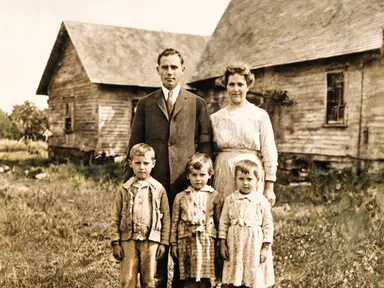
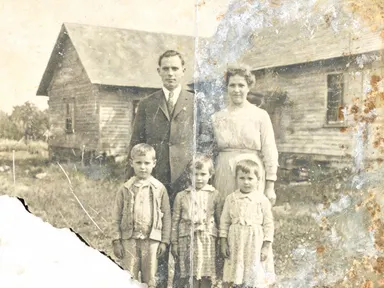
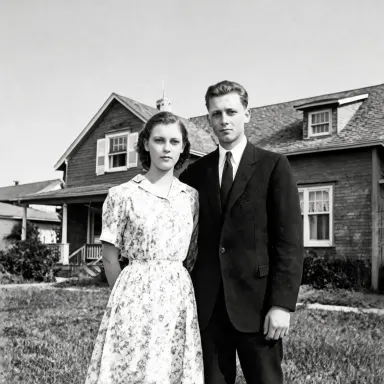
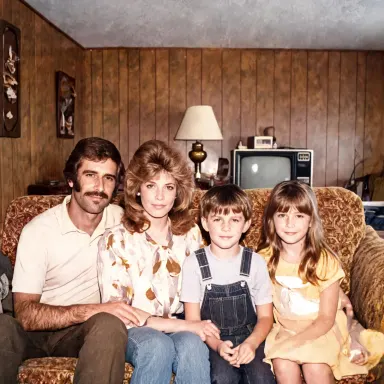
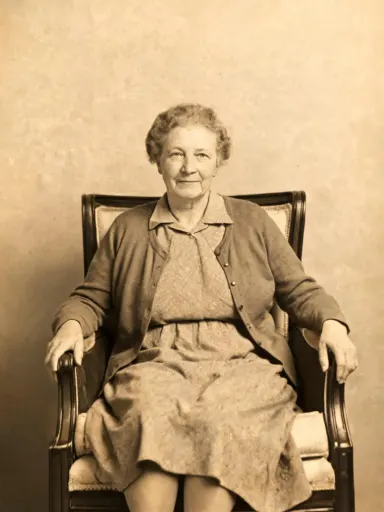
AI Photo Restoration repairs damaged old photographs and returns a clean, high-resolution copy. Upload a JPG, PNG, WebP or GIF of a creased, torn, faded or discoloured print, choose a finished look from the library, and the app rebuilds missing detail, removes damage and keeps every face exactly as it appears in the original. It is made for anyone who has a family archive of deteriorating prints and wants restored copies worth framing or sharing.
How to use this app
- 1
Upload your file. There is no prompt you have to write.
- 2
Pick a look from the visual library, add a note of your own if you want one, then press Generate.
- 3
Watch your result appear in the gallery within moments.
- 4
Download, share, or generate again with a new idea.
What you can make
Rescuing torn family portraits
A wedding photograph folded in a drawer for decades arrives with a deep crease across two faces and faded corners. AI Photo Restoration repairs the crease, lifts the faded areas and returns a clean print. Choosing "Studio portrait" brings the faces forward with soft light and keeps the background from competing.
Restoring wartime and heritage prints
Military portraits, school photographs and civic records from the early twentieth century often survive only as water-stained or foxed originals. The app removes staining and fills lost detail. "Platinum tone" suits the period and produces the cool, long-scale grey of a professional darkroom print of that era.
Adding believable colour to monochrome originals
A black and white snapshot of grandparents on a summer afternoon can be brought into colour that reads as genuinely documentary rather than artificial. "Natural colour" produces realistic skin tones and period-appropriate clothing colours without the oversaturated look that makes colourisation feel false.
Preparing archive photos for print or display
When a family is assembling a printed book or a framed wall display, consistent finish across photographs from different decades matters. Choosing one library option for the entire set, such as "Warm sepia", gives the collection a unified look while the app repairs each image to a consistent 1K+ resolution.
Preserving overexposed or chemically faded snapshots
Colour prints from the 1970s and 1980s often shift strongly toward red or yellow as dyes decay. The app corrects the colour shift and restores neutral tones. "Overcast daylight" is a good choice when the original palette was cool and the goal is a clean, restrained result without warmth being reintroduced.
Shots to try
Tips for better results
Scan at the highest resolution available
The app outputs at 1K+ resolution, and it can only reconstruct detail that is present in the upload. A high-resolution scan of the original print gives the restoration much more to work with than a phone photograph taken at an angle under uneven light.
Match the library choice to the original process
"Warm sepia" suits albumen and gelatin silver prints with existing warm toning. "Platinum tone" suits matte, long-scale originals. "True black and white" suits glossy twentieth-century snapshot paper. Choosing the option closest to the original process produces the most natural-looking result.
Use the detail box for specific instructions
The optional text box under the library is the place to note something the app should preserve or avoid: a particular background element, a colour detail in clothing, or a texture to keep. The library choice handles the overall look; the box handles anything specific to your photograph.
Crop tightly before uploading
If the original print has a wide white border or the scan includes the scanner bed, crop to the image area before uploading. The app focuses its repair work on the photograph itself, and removing surrounding noise helps it allocate that attention accurately.
When to choose this app
AI Photo Restoration is the right choice when the photograph already exists and the job is to repair and finish it, not to create or composite something new. AI Photo Together places two people into a shared scene, and AI Camera Angle Changer reshoots a photo from a new point of view: both are generative tasks. This app's job is repair and careful finishing of a real damaged original, with face consistency and a library of period-appropriate looks built specifically for that purpose.
Frequently asked questions
How badly damaged does a photograph have to be before the app struggles?
The app handles creases, rips, water staining, foxing, fading and colour shift well. If a large portion of the image is completely missing, such as a corner torn away entirely, the app will reconstruct it from surrounding context, but the accuracy of reconstruction decreases as the missing area grows. Partial tears and surface damage are repaired reliably.
Will faces be altered during the repair?
No. Keeping faces consistent with the original is a core behaviour of AI Photo Restoration. The app repairs damage around and across faces without changing the person's appearance, expression or proportions. If a crease runs directly through a face, the repair follows the surrounding facial structure to close it naturally.
Can I restore a colour photograph, or is the app only for black and white originals?
The app works on both. Colour photographs with fading, colour shift or physical damage can be repaired using "Natural colour" or "Overcast daylight". Black and white originals can be restored as-is using "True black and white", "Warm sepia", "Platinum tone" or "Studio portrait", or brought into colour using the two colour options.
What does the optional text box under the library actually change?
It lets you pass one specific instruction that the library choice does not cover: ask the app to keep a particular background detail, preserve the texture of a specific fabric, or avoid warming the skin tones further. It does not replace the library choice but refines it. The app works perfectly well if you leave the box empty.
Is there a difference between "True black and white" and "Studio portrait" for a portrait photograph?
Yes. "True black and white" rebuilds the tonal range evenly across the whole frame, neutral and undramatic. "Studio portrait" applies a light falloff so the edges of the frame darken softly and the faces remain the brightest part of the image, mimicking formal studio lighting. For a portrait where the face is the subject, "Studio portrait" draws more attention to it.
What file formats does the app accept?
You can upload JPG, PNG, WebP or GIF files. Drag the file directly into the upload area or pick it from your device. The app does not accept documents, PDFs or multi-page files: for best results, export or scan each photograph as a single image file before uploading.
How much does it cost?
Each generation costs 1 credit. New accounts get free credits to try it out.
Do I need any editing skills?
No. Upload your photo, pick the look you want from the library, and the app writes the full instruction for you behind the scenes. There is nothing to install and nothing to configure. A small optional box lets you add one line in your own words, but the app works without it.
Can I use the results commercially?
Yes. Content you generate is yours to use, subject to our content licenses.
How long does a generation take?
Most generations finish in under a minute, and you can watch progress live in the gallery.