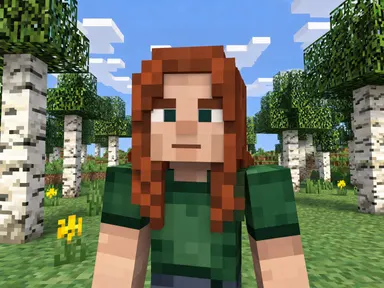
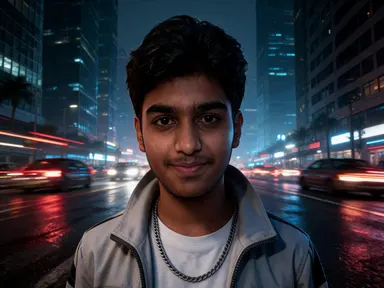
Made with this app


AI Yearbook Photos takes one photograph of you and returns a studio school portrait, framed from the chest up, centred against a backdrop, and dressed for whichever decade you choose, from the fifties to the two thousands and ten. It is built for anyone who wants to see what their face would have looked like staring out of a yearbook page in a different era, or who just wants a faithful, sharply rendered portrait in a classic school-photo style. Your face, skin tone, hair and any glasses or jewellery you are wearing come back exactly as they are.
How to use this app
- 1
Upload your file. There is no prompt you have to write.
- 2
Pick a look from the visual library, add a note of your own if you want one, then press Generate.
- 3
Watch your result appear in the gallery within moments.
- 4
Download, share, or generate again with a new idea.
What you can make
Nostalgia gifts for family
Turning a recent photograph of a parent or grandparent into a portrait from the decade they actually attended school makes a specific, personal gift. The clothing and the look of the photograph do the work, while their face stays completely faithful to the photo you upload.
Social media decade challenges
When a decade-photo trend runs across social platforms, AI Yearbook Photos gives you a clean, studio-quality result in each era rather than a filtered snapshot. Pick each tile in turn and share the set to show your face across seven decades of school-portrait style.
Classroom and reunion fun
Teachers, reunion organisers and group chats often collect portraits of everyone in one style. Because the app works from a single uploaded photo and returns a consistent portrait format, gathering a set of results from different people is straightforward and the output matches across the group.
Seeing yourself in a different era
Curiosity about how a familiar face reads in a different photographic era is the simplest reason to use the app. The seventies tile brings back heavy grain and a warm orange cast; the fifties tile returns black and white on a painted backdrop. The same face, photographed differently.
Creative profile and avatar portraits
The portrait format, centred, chest up, sharp focus, makes results that work cleanly as profile pictures or creative avatars wherever a square or portrait crop is needed. The plain studio backdrop keeps the focus on the face rather than on a setting.
Shots to try
Tips for better results
Upload a clear, close face
The app works from one photograph of one person. A well-lit photo showing the face and chest clearly gives the most faithful result. A very small face in a wide scene, or a group photo, gives the least. Cropping closer before you upload often improves the output noticeably.
Let the decade tile do the work
Each tile sets both the clothing and the look of the photograph together. There is no need to describe the era yourself. Use the optional free text box for small additions, such as the colour of a jumper or a specific collar detail, rather than trying to redirect the era.
Try the tile that matches a real year
If you are making a portrait for a specific person and you know roughly when they were at school, pick the tile that matches. The clothing and photographic style will sit closer to what that person would have actually worn, which makes the result feel more specific rather than generic.
Accept that hair stays as uploaded
The era arrives through what you are wearing and through the photograph itself, not through a change to your hair. If the hair in your source photo does not match the decade, the result still reads as a school portrait from that era because the clothes, backdrop and photographic treatment carry the period.
When to choose this app
AI Yearbook Photos is the right choice when the output you want is a faithful school portrait of one specific person, with their face preserved and the era carried by clothes and photographic style. AI Camera Angle Changer reshoot the same subject from a new point of view, which is a different task entirely. AI Christmas Photos places one person in a festive holiday scene rather than a studio school setting. When the goal is a portrait that could plausibly have come out of a real school yearbook, this app is built for exactly that.
Frequently asked questions
Will my face actually look like me, or will it be a generic result?
The app is built to keep your face, skin tone and hair exactly as they appear in the photo you upload. The changes it makes are the clothing and the photographic treatment for the decade you choose. The person in the result is recognisably the same individual as in the source photo.
Can I get a result with my name or a school name printed on it?
No. The app returns the portrait photograph alone, with no text, lettering, name, year, school crest or any other writing anywhere in the image. There is no yearbook page layout around it either. If you want to add text, that is a step you would take in a separate design tool after downloading the result.
What if I am wearing glasses in my photo: will they appear in the result?
Yes. Glasses appear in the result if and only if you are wearing them in the photo you upload. The same applies to jewellery. The app does not add accessories that are not present in your source photo, and it does not remove ones that are.
Does picking an earlier decade make me look younger?
No. The app does not change how old you look. The same face and the same age come back, photographed the way a school photographer would have photographed them in the decade you pick. If you want a portrait at a different age, a separate app built for age changes is the tool for that.
What file types can I upload?
You can drag a file in or pick one from your device. The app accepts JPG, PNG, WebP and GIF files. A sharp, well-lit image showing one person clearly from the chest up or closer will give you the most faithful portrait.
Can I use the optional free text box to change the backdrop or the framing?
The backdrop and the framing are set by the decade tile you choose, so the free text box will not move them. It is most useful for small additions such as the colour of a jumper or a specific detail to keep. The tile is still the main decision; the box is a small refinement on top of it.
How much does it cost?
Each generation costs 1 credit. New accounts get free credits to try it out.
Do I need any editing skills?
No. Upload your photo, pick the look you want from the library, and the app writes the full instruction for you behind the scenes. There is nothing to install and nothing to configure. A small optional box lets you add one line in your own words, but the app works without it.
Can I use the results commercially?
Yes. Content you generate is yours to use, subject to our content licenses.
How long does a generation take?
Most generations finish in under a minute, and you can watch progress live in the gallery.