How to Upscale & Enhance Images with Seedream v4.5 Edit
Turn low-resolution photos into sharp 4MP images with Seedream v4.5 Edit. Learn how to prompt for detail recovery, noise reduction, and texture enhancement.
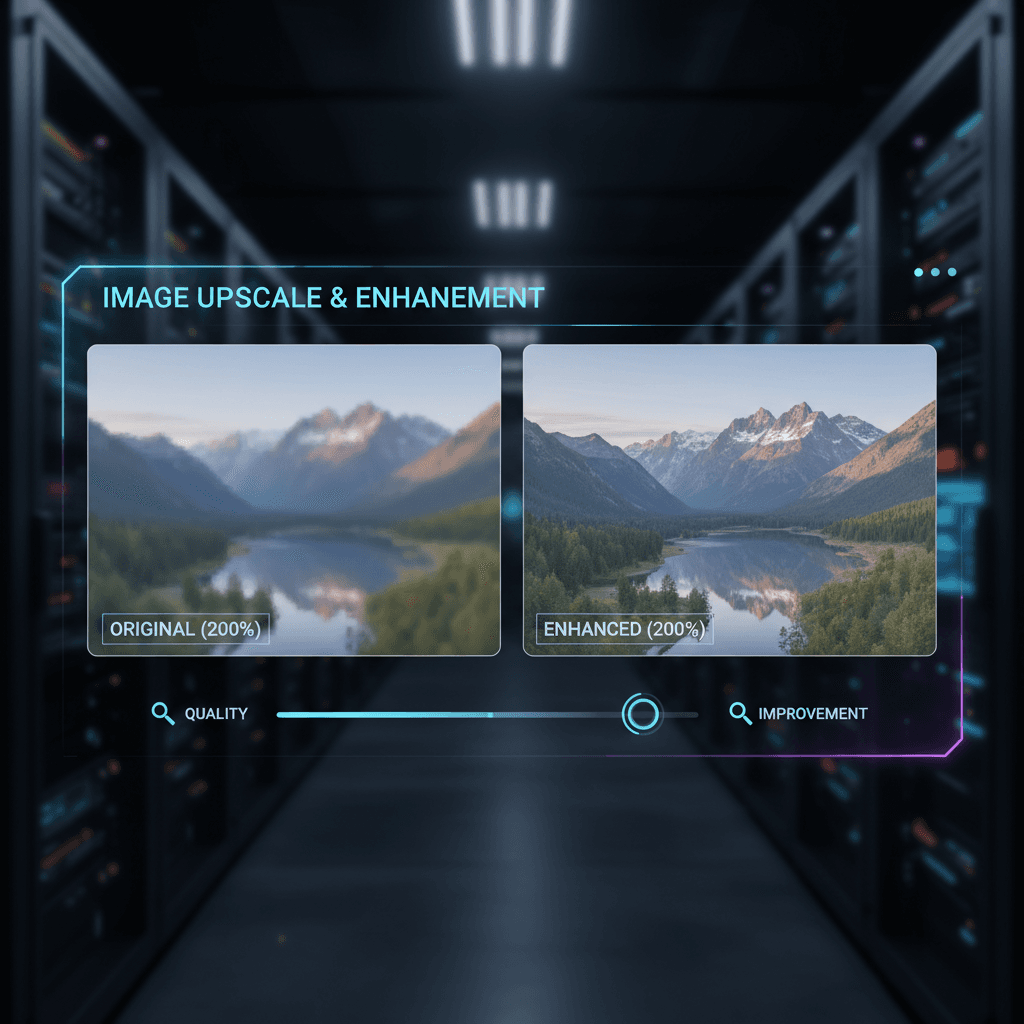
You have a great shot at the wrong resolution: a phone photo you want to print, a cropped detail from a larger image, an old file that was saved small. Traditional upscalers interpolate - they invent pixels based on neighbors, which produces soft or plasticky results. Seedream v4.5 Edit takes a different approach: it regenerates the image at 4MP with real detail reasoning. This tutorial shows you when that works, how to prompt for it, and when to reach for a dedicated upscaler instead.
TL;DR
- Seedream v4.5 Edit renders at 4MP (2048×2048) natively - effectively an upscale for smaller sources
- Best for moderate upscales (2–4x) and detail enhancement, not extreme enlargement
- Prompt for specific textures to guide the model's detail reasoning
- 1 credit ($0.10) per run, 30-60 second turnaround
- For extreme upscales consider dedicated tools; for moderate enhancement v4.5 is excellent
What "Upscaling" Means in v4.5
Most upscaling tools work like this: take a small image, run it through a model that predicts what the missing pixels should look like, output a larger image with filled-in detail.
Seedream v4.5 Edit works differently. It treats your input as a reference and generates a 4MP output that matches the input's content but at higher resolution. The difference is subtle but important: v4.5 is not interpolating between pixels, it is regenerating the image with its own 4MP rendering capability.
Result: fewer upscaling artifacts, more coherent texture, better edge handling. Limits: the model may subtly reinterpret details, so it is not a pure pixel-faithful upscale.
무료 5회 생성 · 신용카드 불필요
When v4.5 Upscaling Works Well
- Phone photos you want to print. 1–3MP originals scale cleanly to 4MP.
- Cropped details from larger images. A 600×600 crop becomes a sharp 2048×2048.
- Old web exports. Decade-old 800×600 JPEGs regain usable resolution.
- Social saves. Images pulled from Instagram at 1080×1080 scale to 4MP.
When to Reach for a Dedicated Upscaler
- Extreme upscales (>4x). v4.5 handles 2–4x well; beyond that, a dedicated tool may win.
- Pixel-faithful enlargement. When the exact original pixels must be preserved, use a traditional upscaler.
- Archival restoration. For old scans and damaged photos, specialized restoration tools outperform v4.5.
- Text-heavy images. v4.5 may reinterpret small text - use a dedicated text-aware upscaler.
Try Seedream v4.5 Edit - high-res AI editing
4MP output, up to 10 input images, $0.10 per edit. Free credits, no card.
Try Seedream v4.5 Edit FreeThe Upscale Prompt Template
Enhance this image to 2048x2048 resolution while preserving all
content, composition, colors, and subject details exactly. Recover
fine texture detail - [TEXTURE DESCRIPTIONS]. Reduce noise and
compression artifacts. Do not change the subject, pose, framing,
or any content. Output at 2048x2048.
Fill in [TEXTURE DESCRIPTIONS] with the textures relevant to your image - "fabric weave, skin pores, wood grain" or whatever applies.
Worked Example 1: Phone Portrait
Input: 1080×1080 portrait photo from a phone
Prompt:
Enhance this portrait to 2048x2048 resolution. Preserve the subject's
face, expression, clothing, and background exactly. Recover fine
skin texture and hair detail. Reduce JPEG compression artifacts.
Do not alter the subject's identity or composition. Output at 2048x2048.
Result in ~40 seconds: a sharper version of the same portrait with more believable skin texture and hair detail. Ready for a 5×7 print.
Worked Example 2: Product Crop
Input: 600×600 crop of a watch face from a larger product shot
Prompt:
Enhance this watch crop to 2048x2048 resolution. Preserve the watch
face details - hands, dial markings, logo, texture - exactly.
Recover fine metal and glass details. Reduce noise. Do not alter
the composition or design. Output at 2048x2048.
Result: a sharp 4MP detail shot suitable for a product detail page. 1 credits.
Worked Example 3: Old Web Export
Input: 800×600 JPEG from an old blog post
Prompt:
Enhance this image to 2048x2048 resolution. Preserve the composition,
subject, colors, and all content exactly. Recover fabric texture,
skin detail, and background sharpness. Reduce JPEG compression
artifacts. Do not change any content. Output at 2048x2048.
Old assets get new life without reshooting.

Rescue your low-res assets. Open Seedream v4.5 Edit.
Common Upscale Issues
Issue: Subject Identity Drifted
v4.5 may subtly reinterpret faces when enhancing, especially at larger upscales.
Fix: Add "preserve the subject's facial features, eye shape, and skin tone exactly" to the prompt.
Issue: Background Detail Got Too Busy
The model sometimes invents background detail that was not there.
Fix: Add "preserve the original background composition and blur" to keep the background from being over-enhanced.
Issue: Text Became Unreadable
If your image contains small text (product labels, signage), v4.5 may reinterpret characters.
Fix: For text-heavy images, use a dedicated text-aware upscaler, or mask out the text region and upscale only the rest.
Issue: Colors Shifted
Occasionally the output has subtly different color temperature.
Fix: Add "preserve the exact color palette and temperature of the original" and consider final color correction in Lightroom.
Enhancement vs Upscale: What Is the Difference?
These overlap but are not identical:
- Upscale: Increase resolution of a smaller image to a larger one
- Enhance: Improve detail, clarity, and texture at the same or similar resolution
v4.5 does both simultaneously. When you upload a 1024×1024 image and the model outputs 2048×2048, you are upscaling. When you upload a 2048×2048 image and the model outputs a sharper 2048×2048, you are enhancing.
The same prompt template works for both. The key phrase is "enhance to 2048x2048" - the model handles the rest.
Turn phone photos into print-ready files
4MP output from smaller sources. $0.10 per enhancement. Free credits to start.
Open Seedream v4.5 EditWorkflow: Enhancing a Whole Archive
If you have a backlog of old low-res images that you want to bring to modern standards:
- Batch your archive. Pull 20–50 images at a time.
- Build a template prompt. One that works for your archive's content type.
- Run 3 samples first. Validate the template.
- Scale the batch. 20 images × ~45 seconds = 15 minutes of wall time.
- Review in a grid. Catch any drifts before they ship.
At 1 credit each, an archive of 200 images costs 200 credits - comfortably inside the $25 Creator plan's 300 a month.
Combine With Other Edits
One underused pattern: upscale and edit in the same prompt.
Enhance this portrait to 2048x2048 resolution AND replace the
background with a clean studio cyclorama in soft gray. Preserve
the subject's face, pose, and hair exactly. Recover skin and
hair detail. Output at 2048x2048.
You get the enhanced subject and a new background in one 8-credit call. Efficient.
Further Reading
Get Started
Find an old photo that feels too low-res for current standards, open Seedream v4.5 Edit, and try the enhancement template. Your 10 free credits enhance six images - enough to prove the workflow works on your archive. For pricing details see our pricing page.
Seedream v4.5 Edit 사용해보기 - 지금 바로
이미지를 생성 페이지에 업로드하여 편집을 시작하세요.
무료 5회 생성 · 신용카드 불필요