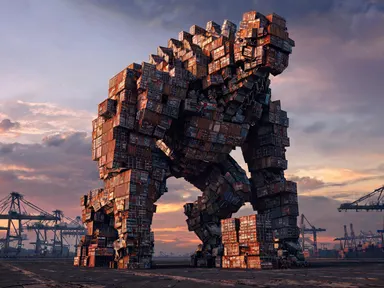
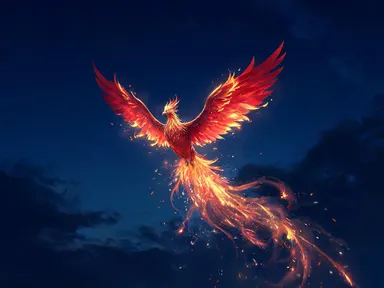
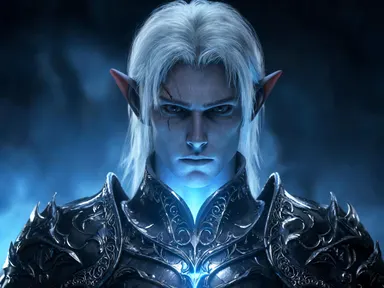
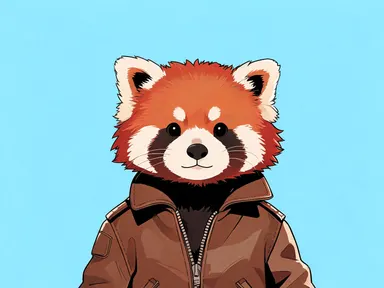
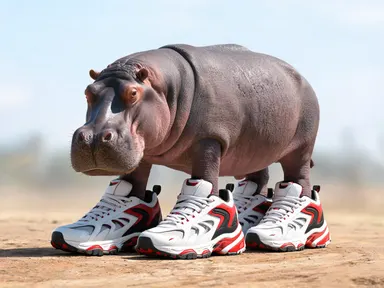
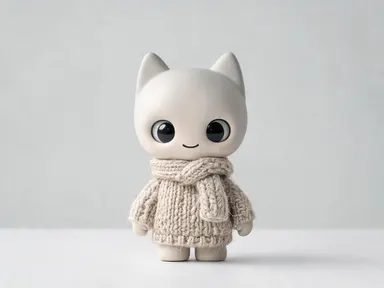
Made with this app

AI Emoji Generator turns any subject you can name into a single custom emoji image, centred on a plain pale grey background and drawn simply enough to stay readable at thumbnail size. Type a subject, pick one of eight drawing styles, and the app builds the rest. It suits designers who need a one-off icon, educators building visual vocabulary cards, community managers who want a unique reaction image, and anyone who has thought: I wish there was an emoji for that.
How to use this app
- 1
Upload your file. There is no prompt you have to write.
- 2
Pick a look from the visual library, add a note of your own if you want one, then press Generate.
- 3
Watch your result appear in the gallery within moments.
- 4
Download, share, or generate again with a new idea.
What you can make
Custom Slack and Discord Reactions
Community managers and team admins can generate an emoji for any running joke, project name or team mascot that does not exist in the standard set. Type the subject, choose "Flat vector" for a clean look that reads clearly at the small sizes messaging apps use, and upload the result directly to your server or workspace.
Sticker Packs for Messaging Apps
Build a thematically consistent sticker pack by generating several subjects all in the same style. "Soft blob" or "Stitched felt" give a warm, friendly character to a full set of food, animal or mood stickers that feel like they belong together.
Classroom Visual Aids
Teachers creating worksheets or slide decks can generate a clear pictogram for any vocabulary word, concept or category marker. "Flat vector" produces clean shapes that print and scale well, while "Pixel art" suits a retro or gaming theme in a computing or coding lesson.
Game and App Prototyping
Developers and indie game makers who need placeholder icons quickly can generate a "Pixel art" tile for any in-game item, creature or status effect in seconds. The centred composition and consistent frame make it easy to drop results straight into a sprite sheet for early testing.
Social Media Content Accents
Content creators who want a distinctive visual punctuation mark for a recurring post format can generate a signature emoji in "Glossy 3D" or "Neon sign" and reuse it as a thumbnail badge, watermark-free accent, or post-ending icon across their feed.
Shots to try
Tips for better results
Name One Clear Subject
The app frames a single centred subject, so the more specific and singular your entry, the cleaner the result. "A red mushroom with white spots" will read far better at small sizes than a vague multi-part description. One noun with one or two strong adjectives is a reliable pattern.
Match the Style to Its End Use
"Pixel art" and "Flat vector" hold up best at very small display sizes because they use hard edges and minimal colour. "Modelling clay", "Stitched felt" and "Glossy 3D" reward larger display sizes, such as a printed sticker or a big reaction in a live stream chat.
Try the Same Subject in Two Styles
Because the subject drives the composition and the tile drives the aesthetic, generating the same entry twice under different library choices is a reliable way to find which style suits your project before committing to a full set. Compare a "Marker doodle" result with a "Flat vector" one for the same subject.
Keep Descriptions Visual, Not Conceptual
The app draws shapes, not ideas. Descriptions of things that have a recognisable visual form, such as animals, objects, food or weather symbols, produce cleaner results than abstract concepts. If your concept has a traditional symbol associated with it, name that symbol rather than the concept itself.
When to choose this app
AI Emoji Generator is the right choice when you need a single, clean, icon-scale image of one subject with no text, no background clutter and no compositional complexity. AI Clipart Generator also lets you type a subject and pick a drawing style, but it targets clipart sized for slides and documents rather than icon-scale emoji. AI Logo Maker is built around brand names and the typography that goes with them. When the job is a simple, self-contained pictogram that reads in a tiny square, AI Emoji Generator is the focused tool for it.
Frequently asked questions
What can I actually type in the subject box?
You can type almost any noun or short description of a thing that has a recognisable visual form: animals, food, objects, weather symbols, mythical creatures, sports equipment, facial expressions and more. The more visually concrete your description, the cleaner the result. Abstract concepts work better when you name a symbol associated with them.
Can I get a transparent background so the emoji sits over other images?
The app produces an image on a plain pale grey background, not a transparent one. To place the emoji over another image you would need to remove the background in a separate editing tool after downloading. The app itself does not include a background-removal step.
Will the app put a word, initial or name inside the emoji?
No. The app draws shapes and does not letter any text into the image, so it cannot create a letter emoji, an initial badge or a name sticker. If you need artwork with words drawn into it, AI Greeting Card or AI Meme Generator are designed for that purpose.
How do I use the result once I have downloaded it?
The output is an ordinary image file. You can upload it as a custom emoji in Slack, Discord or similar platforms, use it as a sticker image in messaging apps that accept picture stickers, drop it into a presentation, or print it anywhere an image file is accepted.
Does the drawing style affect what subjects work well?
Yes. Some styles suit certain subjects better than others. "Pixel art" works best for geometric or retro subjects because fine organic detail is lost at sixteen pixels. "Modelling clay" and "Stitched felt" bring out texture on rounded subjects like animals. Experimenting with the same subject in two styles is the most direct way to find out.
Can I turn a photo of my face or my pet into an emoji?
No. AI Emoji Generator starts from an empty frame and takes no photograph or file of any kind as input. It draws a subject from your text description. If you want to turn an existing photo into a sticker, that is a different app built around uploading an image.
How much does it cost?
Each generation costs 1 credit. New accounts get free credits to try it out.
Do I need any editing skills?
No. Upload your photo, pick the look you want from the library, and the app writes the full instruction for you behind the scenes. There is nothing to install and nothing to configure. A small optional box lets you add one line in your own words, but the app works without it.
Can I use the results commercially?
Yes. Content you generate is yours to use, subject to our content licenses.
How long does a generation take?
Most generations finish in under a minute, and you can watch progress live in the gallery.