Made with this app
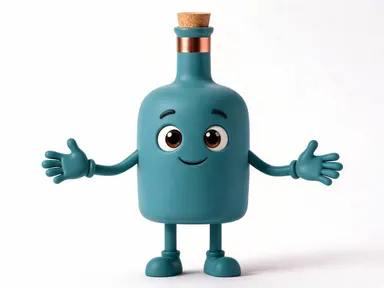
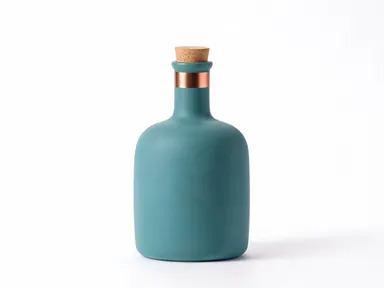
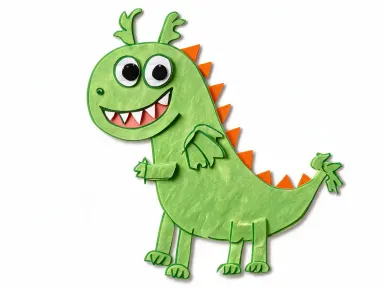
AI Mascot Generator takes a photograph of a product, a logo or a drawing and builds it into a standing brand character with a face, arms and legs. Upload your file, pick one of sixteen material styles from the library, and the app returns a character whose silhouette, colours and details are unmistakably yours. It is built for brand owners, product designers, indie makers and anyone who needs a recognisable mascot without a lengthy illustration brief.
How to use this app
- 1
Upload your file. There is no prompt you have to write.
- 2
Pick a look from the visual library, add a note of your own if you want one, then press Generate.
- 3
Watch your result appear in the gallery within moments.
- 4
Download, share, or generate again with a new idea.
What you can make
Brand mascot from a product
A small business sells a signature hot sauce bottle. Uploading the bottle and choosing "Flat vector" produces a clean, print-ready character that keeps the bottle's shape, colours and cap, ready for packaging inserts, stickers and social headers without a designer on retainer. The label wording is not carried over, since the app draws no text at all.
Character for a game or app
An indie developer uploads a logo mark and selects "Pixel art" to get a 16-bit sprite-style character that shares the logo's exact colour palette. The result slots naturally into promotional art, app store screenshots and community posts.
Collectible product preview
A toy brand wants to pitch a vinyl figure line. Uploading a product shot and choosing "Vinyl figure" shows stakeholders how the object reads as a smooth injection-moulded collectible, with the brand's real colours and proportions intact.
Children's brand character
A nursery supply company uploads its signature product and picks "Kawaii anime" to get a soft, large-eyed character with pastel shading. The result suits packaging aimed at young children and fits social content without a full illustration commission.
Retro campaign mascot
A heritage food brand uploads its tin and selects "1950s advertising" for a warm, slightly off-register character that echoes mid-century print advertising. The optional text box can nudge the expression toward a wink or a confident grin.
Shots to try
Tips for better results
Photograph the product cleanly
A well-lit shot against a plain background gives the app the clearest read of the object's silhouette, colours and surface finish. Cluttered or dark product photos obscure the details the app carries across into the character.
Match the style to the output format
"Flat vector" and "Pixel art" reproduce cleanly at any scale and read well on screens and print. "Storybook watercolour" and "Claymation" carry texture that rewards larger display sizes. Think about where the character will live before choosing a tile.
Use the text box for expression and pose
The optional text box under the library is best used to steer mood or stance: a phrase such as "arms raised in a cheer" or "shy, looking sideways" works within what the style tile already sets. It cannot change the material the tile chose.
Try a logo when no product exists yet
A flat logo mark or drawn emblem is a valid upload, not just a photograph. The app reads the shapes and colours from whatever you provide, so a brand in its early stages can explore mascot directions before a physical product exists.
When to choose this app
AI Mascot Generator is the right choice when the goal is a standing character built from a real object, logo or drawing. AI Logo Mockup Generator places your artwork unchanged onto physical surfaces like cups and shopfronts; it does not turn anything into a character. AI Sketch to Image converts a drawing into a photograph, a sculpture or a painting; it does not give the subject a face and limbs. When you need the object itself to become a brand personality, with consistent colours and proportions and a material style chosen from sixteen options, this app is the one to use.
Frequently asked questions
What kinds of files work best as uploads?
The app accepts JPG, PNG, WebP and GIF files. Products, packaged goods, logo marks and drawn emblems all work well. A clear, well-lit image with a readable silhouette gives the best results. A photograph of a person is not the right upload for this app.
Will the character keep my product's actual colours?
Yes. The app carries the object's colours, proportions and surface details into the character. A red bottle produces a red character; a blue logo mark produces a blue one. The material style changes the finish and texture, not the colour identity.
Can I add my brand name or a slogan to the character?
The app does not place any text, lettering, numbers or captions on the result. This applies even if you mention text in the optional box. If you need a name alongside the character, that is best added in a design tool after you have the image.
What does the optional text box actually change?
It lets you adjust things like pose, expression or a specific detail to emphasise or leave out. It works within what the library tile already sets. You cannot use it to change the material or finish the tile chose, but it is genuinely useful for steering personality and stance.
Does the material style change what the character looks like beyond texture?
Yes, noticeably. "Plush toy" gives stitched seams and embroidered features. "Vinyl figure" gives hard moulded plastic and specular highlights. "1930s cartoon" gives rubber-hose limbs and pie-cut eyes. The style shapes the character's whole visual language, not just its surface.
How many attempts should I plan for to get a usable result?
Most users find a clear product photo paired with a well-matched library tile gives a strong result on the first or second attempt. Trying a different tile or adding a short note in the text box is often enough to steer the result where you want it. Each attempt is charged at the cost shown on the button.
How much does it cost?
Each generation costs 1 credit. New accounts get free credits to try it out.
Do I need any editing skills?
No. Upload your photo, pick the look you want from the library, and the app writes the full instruction for you behind the scenes. There is nothing to install and nothing to configure. A small optional box lets you add one line in your own words, but the app works without it.
Can I use the results commercially?
Yes. Content you generate is yours to use, subject to our content licenses.
How long does a generation take?
Most generations finish in under a minute, and you can watch progress live in the gallery.