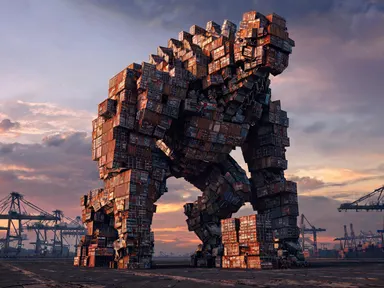
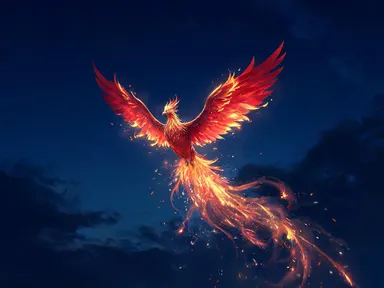
Made with this app
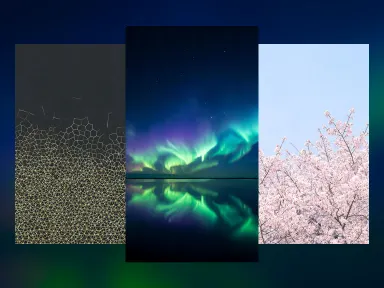
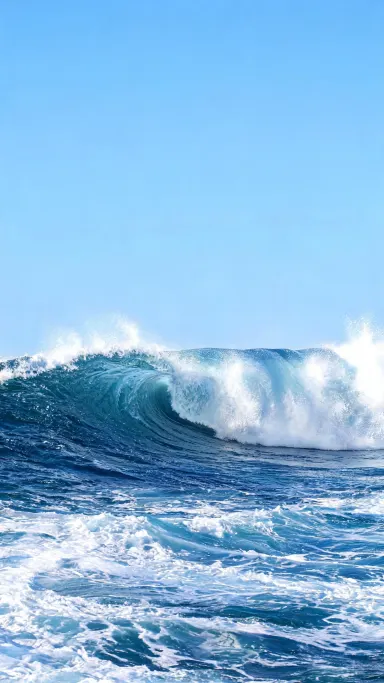
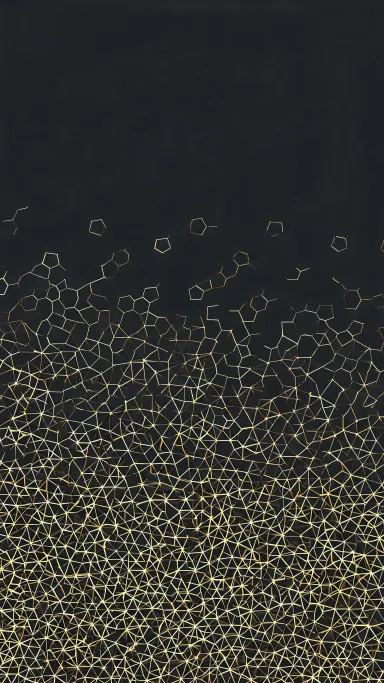
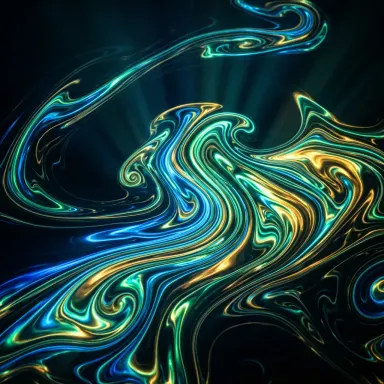
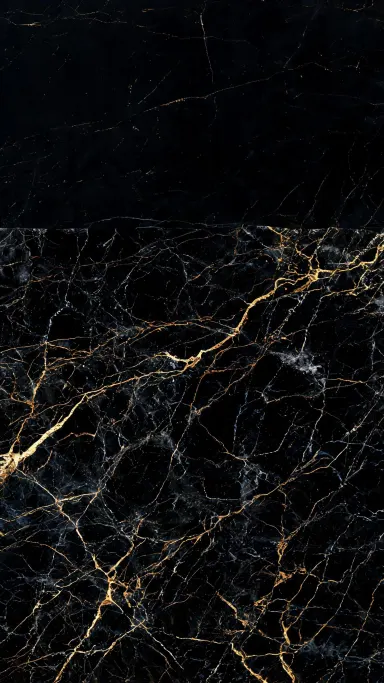
AI Wallpaper generates original phone wallpapers sized and composed specifically for mobile screens. Choose one of fourteen looks from the visual library, add an optional detail in your own words, and the app builds a fresh 1728 by 3072 pixel image every time. There is no photograph to upload and no prompt to write. It is designed for anyone who wants a distinctive, well-framed wallpaper without spending time on image editing or prompt engineering.
How to use this app
- 1
Upload your file. There is no prompt you have to write.
- 2
Pick a look from the visual library, add a note of your own if you want one, then press Generate.
- 3
Watch your result appear in the gallery within moments.
- 4
Download, share, or generate again with a new idea.
What you can make
A New Lock Screen in Seconds
Someone bored with their current wallpaper picks "Neon City" from the library and generates. The composition keeps the upper portion of the frame calm so the lock screen clock sits cleanly over the rain-wet street below, with magenta and cyan reflections filling the lower two thirds.
Matching Wallpapers for a Theme
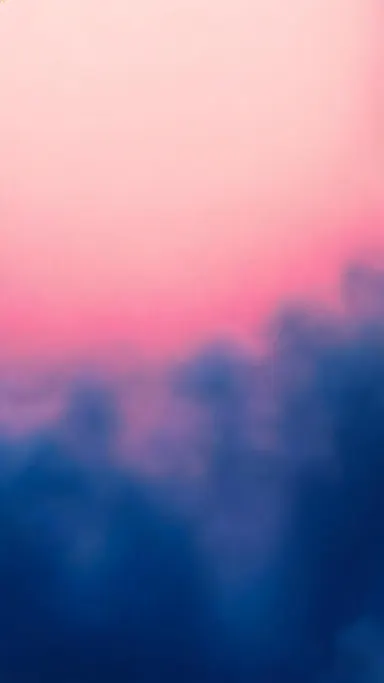
A user building a coordinated home screen picks "Soft Gradient" and generates two or three times. Because no fixed seed is used, each result is a distinct variation on the same warm-to-cool palette, making it easy to find one that pairs well with their icon layout.
Seasonal Refresh Without Stock Photos
At the turn of spring, someone selects "Cherry Blossom" and adds a note in the optional box asking for a slightly deeper rose tone. The app draws an original image rather than recycling a photograph, so the result is not recognisable from any stock library.
A Calming Screen for Focus
Someone who wants a minimal, distraction-free phone picks "Misty Forest" or "Liquid Chrome". Both keep the upper frame quiet while placing atmospheric detail lower down, which means the notification bar and clock have visual breathing room without the image feeling empty.
Gifting a Personalised Wallpaper
A friend who loves astronomy receives a wallpaper made with "Nebula", with a note in the optional box steering the palette toward warmer violet. The image is original and specific, which makes it a more considered gesture than forwarding a generic space photograph.
Shots to try
Tips for better results
Use the Optional Box Sparingly
The library tile does the heavy compositional work. Reserve the optional text for one specific adjustment, such as a colour shift or a single element to include or exclude. A long instruction can pull against the tile's built-in look and produce inconsistent results.
Generate More Than Once
Because each generation produces a new and different image, it is worth running the same tile two or three times before settling. The framing, the light direction and the exact distribution of detail will vary, giving you real options to compare side by side.
Account for Your Phone's Crop
The image is 1728 by 3072 pixels, a 9 by 16 ratio. Most current phones have a taller screen, around 9 by 19.5, so your phone will trim a little from the left and right edges when the image is set as a wallpaper. Picks with centred subjects, such as "Nebula" or "Soft Gradient", tend to survive that crop well.
Match the Look to Your Icon Style
Busy textures such as "Tropical Leaves" or "Oil Paint" work best with a small number of icons on the home screen, because the lower two thirds carry strong shapes. Minimal picks such as "Soft Gradient" or "Liquid Chrome" are more forgiving with a full dock and multiple icon rows.
When to choose this app
AI Wallpaper is the right choice when you want a finished, correctly composed phone wallpaper without writing a prompt or editing an image yourself. Sibling apps such as Seedream v3, which offers reliable text-to-image with guidance control, or FLUX.1 Dev, which provides high-quality image generation with fine control, are powerful tools for open-ended image creation, but they hand the full compositional brief back to you. AI Wallpaper makes that decision for you by sizing, framing and composing every image specifically for a phone lock screen.
Frequently asked questions
Can I use a photograph I already have as the starting point?
No. AI Wallpaper draws an entirely new image from the library choice you select. It does not accept an uploaded photograph, so it cannot extend, blur, reframe or stylise an existing picture. If you want to work from a photo you already have, Arteza has other apps designed for that.
Will the same tile always produce the same wallpaper?
No. Each generation is independent, so pressing generate on "Mountains" twice returns two different images. The look, the general subject and the composition stay consistent with the tile, but the specific light, the exact shapes and the fine detail change each time. This is intentional, and it means trying again is the easiest way to find a result you prefer.
Can I add my name, a quote or a date to the wallpaper?
No. The app does not place any text, letters, numbers or other written content on the image. The wallpaper arrives as a clean picture with no captions or overlays. If you want text on a wallpaper, that would need to be added separately in a photo editing app after downloading.
How should I think about the optional text box?
Think of it as a fine-tuning field rather than a full prompt. It is best used for one narrow instruction, such as asking for a cooler colour temperature on "Sand Dunes" or requesting that "Nebula" lean toward blue rather than violet. The library tile remains the primary decision and the optional note simply nudges it.
Will the wallpaper fit my phone screen exactly?
The image is delivered at 1728 by 3072 pixels, which is a 9 by 16 ratio. Many current phones have a slightly taller native screen ratio, around 9 by 19.5. Your phone will trim a small amount from the sides rather than letterboxing the image, so the wallpaper fills the screen fully but the very edges may not appear.
How does the upper part of the frame stay clear for my clock?
Every look in the library is composed so the detail, texture and strongest shapes gather in the lower two thirds of the frame, leaving the upper portion calmer and more open. This holds across all fourteen tiles, though a very textured pick such as "Oil Paint" or "Tropical Leaves" will still carry some texture there rather than being a blank rectangle.
How much does it cost?
Each generation costs 1 credit. New accounts get free credits to try it out.
Do I need any editing skills?
No. Upload your photo, pick the look you want from the library, and the app writes the full instruction for you behind the scenes. There is nothing to install and nothing to configure. A small optional box lets you add one line in your own words, but the app works without it.
Can I use the results commercially?
Yes. Content you generate is yours to use, subject to our content licenses.
How long does a generation take?
Most generations finish in under a minute, and you can watch progress live in the gallery.